Feature Manual
The features of SpinDrops are described here in four sections: Menus, Windows, Preferences, and Keyboard Shortcuts.
Menus
View Menu
The menu opens some windows to view the experiment, and over the display size. It also has some control over how the DROPS Representation is displayed.
List Prod. Ops…
This menu opens the List List Prod. Ops Window.
Phase Color Ref…
This menu opens the Phase Color Ref Window.
Density Operator…
This menu opens the Density Operator Window.
Hamiltonian…
This menu opens the Hamiltonian Window.
Eff. Hamiltonian…
This menu opens the Effective Hamiltonian Window.
Propagator…
This menu opens the Propagator Window.
Elem. Propagator…
This menu opens the Elem. Propagator Window.
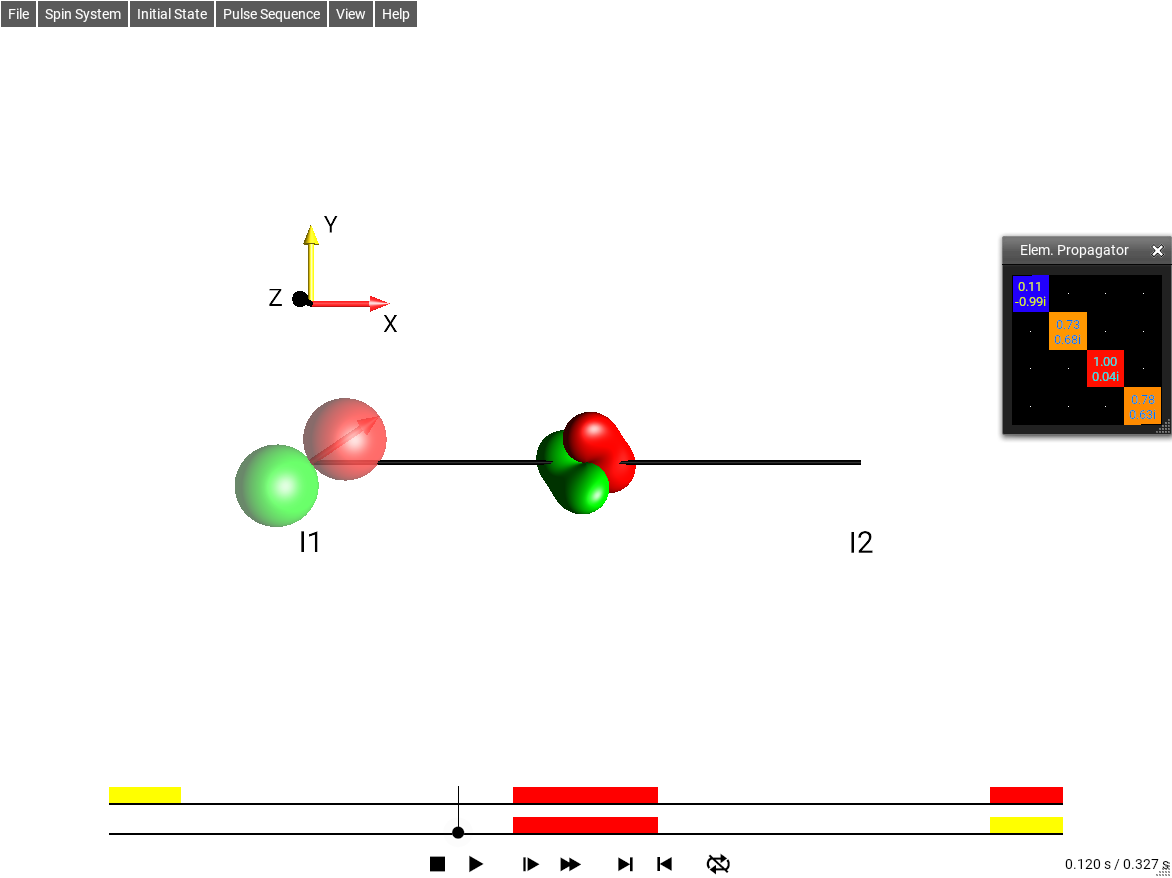
Fig. 33 ‘Elem. Propagator’ view
Separation
The menu lets you choose which of the Separation Types is used for the DROPS Display.
These are: - Standard - Standard Plane - Coh. Order |p| - Coh. Order p - Rank j, - j, |p|, - j, p
Zoom
The GUI can be made larger or smaller according to the entries in this menu. Be careful not to make it too small!
Save Default View
Selecting this menu item will save the current positioning of the 3D view as the default view for the current Layout. Each Layout has its own default view. The default view can be loaded into the viewer by double clicking the screen in the DROPS display.
Windows
Preferences Window
The menu selection opens the Preferences Window. It is the place to set user-configurable Preferences.
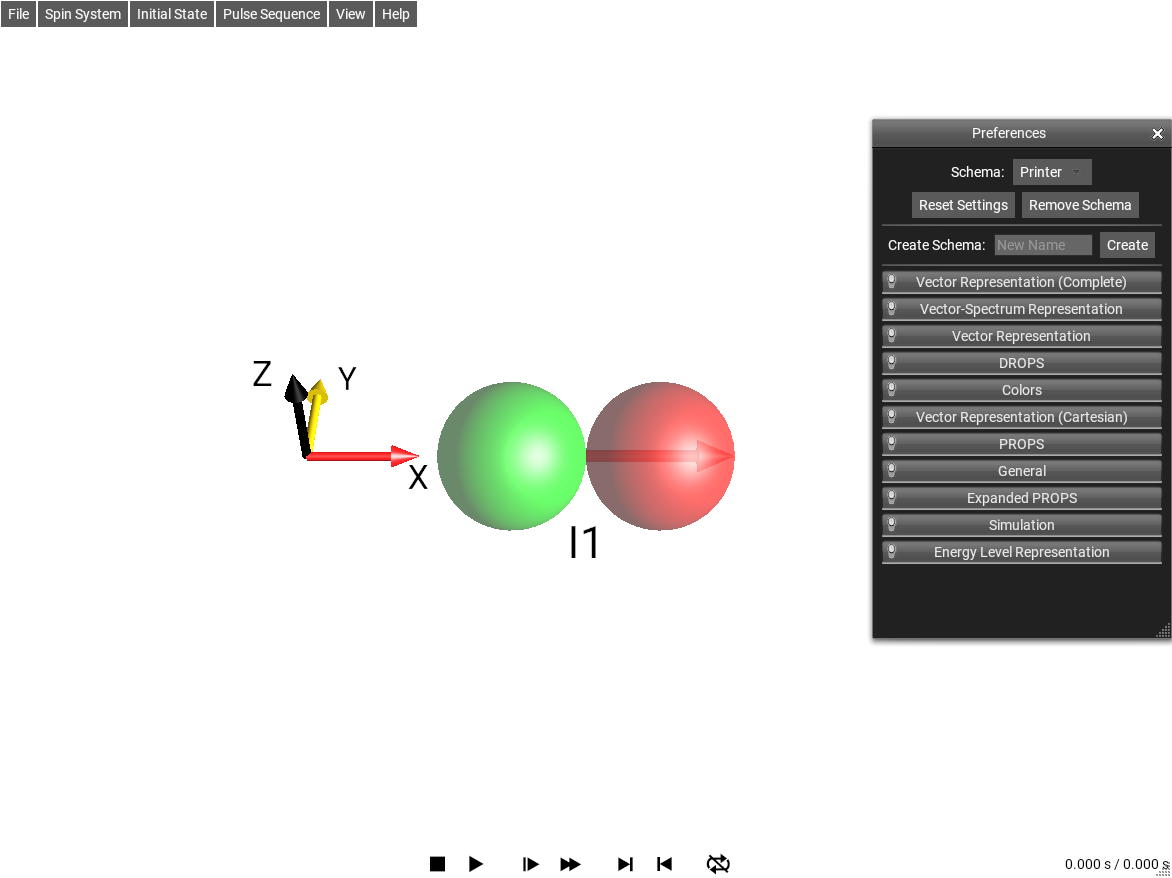
Fig. 34 Preferences Window
The current Preferences schema is displayed at the top of the Preferences Window. Selecting an entry from the drop-down menu changes to another schema. Changing preferences settings only changes the setting within the current schema.
The Reset Settings button will reset any customization in the current schema back to the values of the Default Schema. If the Default Schema is selected, then the settings will be reset to their “factory defaults” – SpinDrops’ default settings.
The Remove Schema button will delete the current schema.
To create a new schema, enter a New Name for your schema in the corresponding text box, and click Create.
Note
It may be easier to use Project to store different combinations of settings rather than Schemas, depending on what you are trying to do.
System Parameters Window
The menu selection opens the System Parameters Window. This window provides control over the physical parameters of the spin system: chemical shift offsets, J-couplings, coupling topology (weak vs. strong), and B1 inhomogeneity.
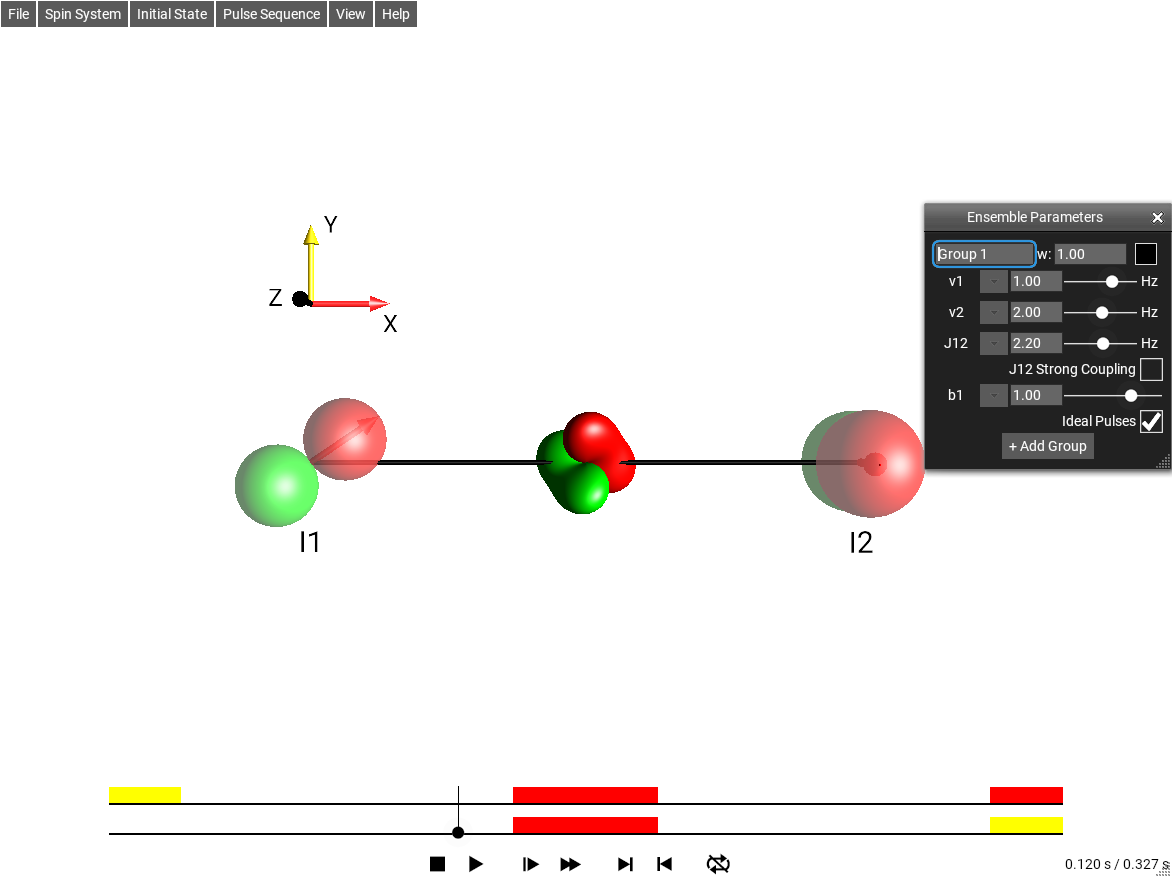
Fig. 35 System Parameter Editor
Each parameter can be specified as a fixed value, a list of discrete values, or a linearly spaced interval. See Ensemble Parameters for details.
Ensemble Parameters
SpinDrops can simulate an ensemble of spin systems with varying parameters. This is used to study the effect of parameter variations (such as offset distributions or B1 inhomogeneity) on a pulse sequence, and is also essential for robust pulse optimization.
Each parameter in the System Parameters Window has a type selector that determines how the parameter varies:
- Scalar (default)
A single fixed value. The parameter takes this one value in the simulation.
- List
An explicit list of values, entered as comma-separated numbers (e.g.
-100, 0, 100). The simulation runs once for each value in the list.
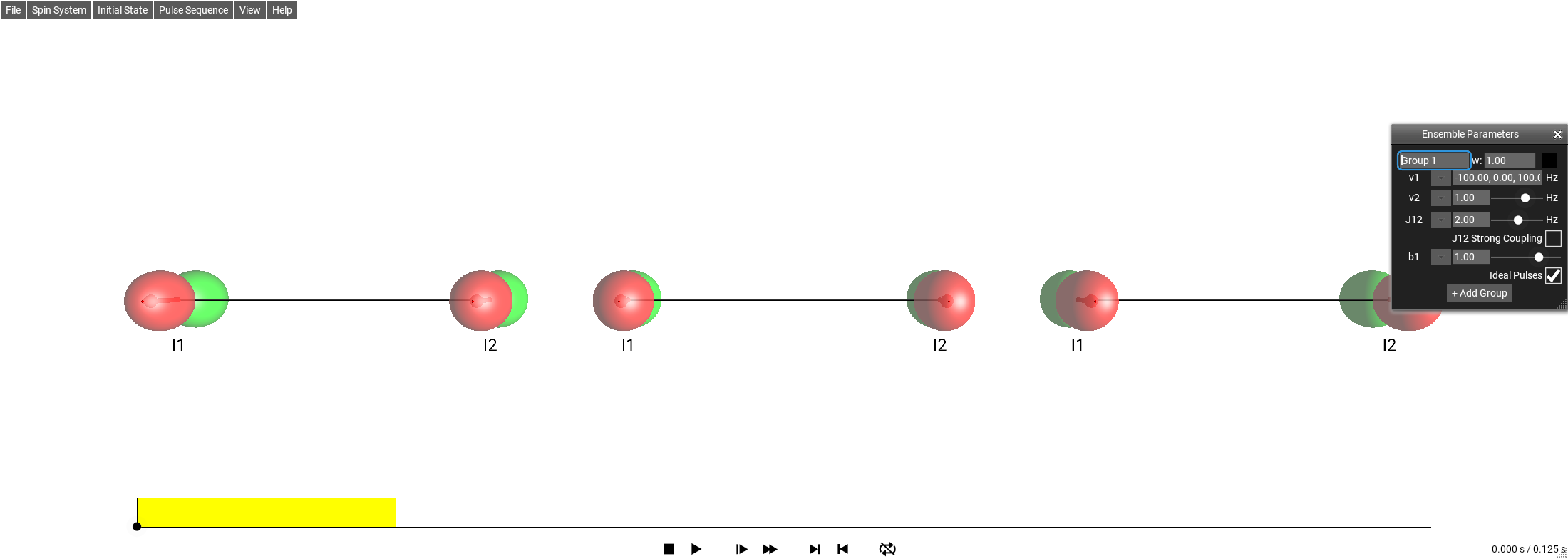
Fig. 36 Offset \(\nu_1\) set to a List of three values.
- Interval
A linear sweep specified by a minimum value, maximum value, and number of points. For example, min=-500, max=500, n=21 produces 21 evenly-spaced values from -500 to 500.
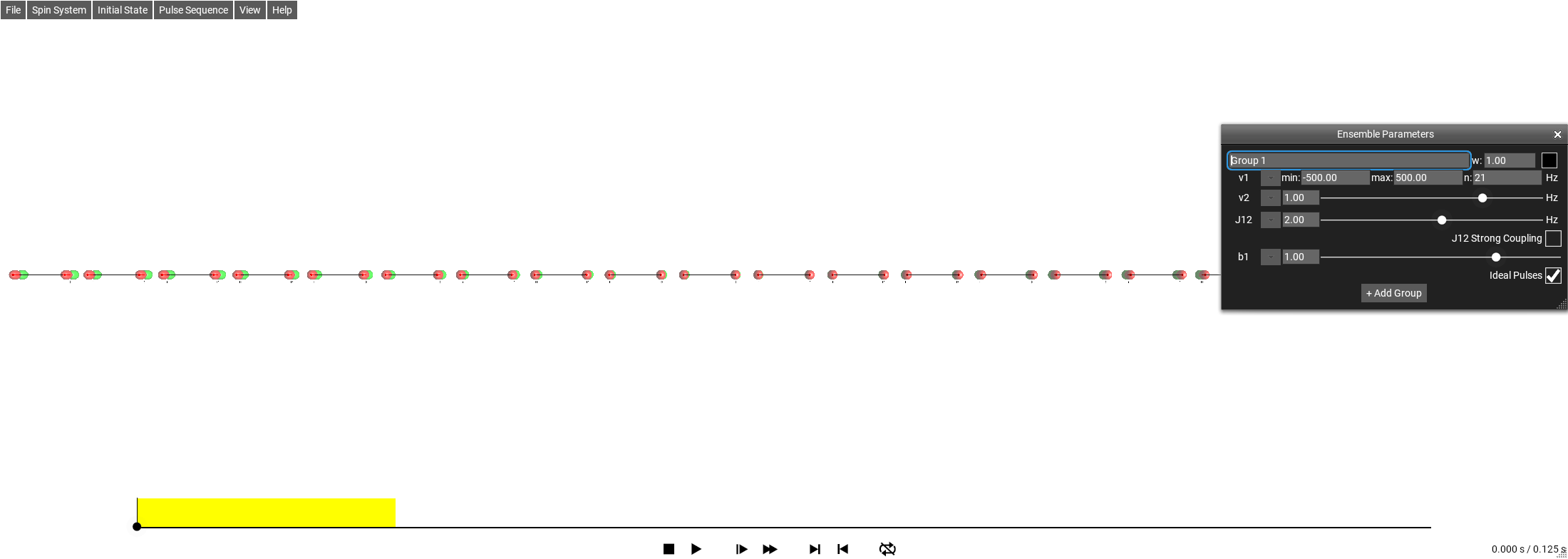
Fig. 37 Offset \(\nu_1\) set to an Interval sweep.
When multiple parameters are set to List or Interval, the simulation explores the outer product of all varying parameters. For instance, if \(\nu_1\) is an Interval with 5 points and \(J_{12}\) is a List with 3 values, the simulation produces 5 x 3 = 15 total ensemble points.
Ensemble Groups
Parameters can be organized into groups to model different physical scenarios. Each group defines its own set of parameter types and values. The results from all groups are combined using configurable per-group weights.
To add a new group, click the + button at the bottom of the System Parameters Window. Each group has:
Name – a label displayed in the visualization
Weight – relative contribution of this group to the aggregated signal and optimization cost
Color – the tint used to identify the group in the visualization display
Per-group settings also include:
Ideal Pulses – when enabled, RF pulses are treated as instantaneous rotations (no finite-pulse effects)
Strong Coupling – per J-coupling pair, toggles between weak coupling (\(I_{1z}I_{2z}\) only) and strong coupling (\(I_{1z}I_{2z} + I_{1x}I_{2x} + I_{1y}I_{2y}\))
Each group can also override the spin-to-channel mapping, allowing homonuclear and heteronuclear systems to be compared within one ensemble.
For example, a broadband pulse design might use three groups to model in-band and out-of-band behavior, each with B1 inhomogeneity:
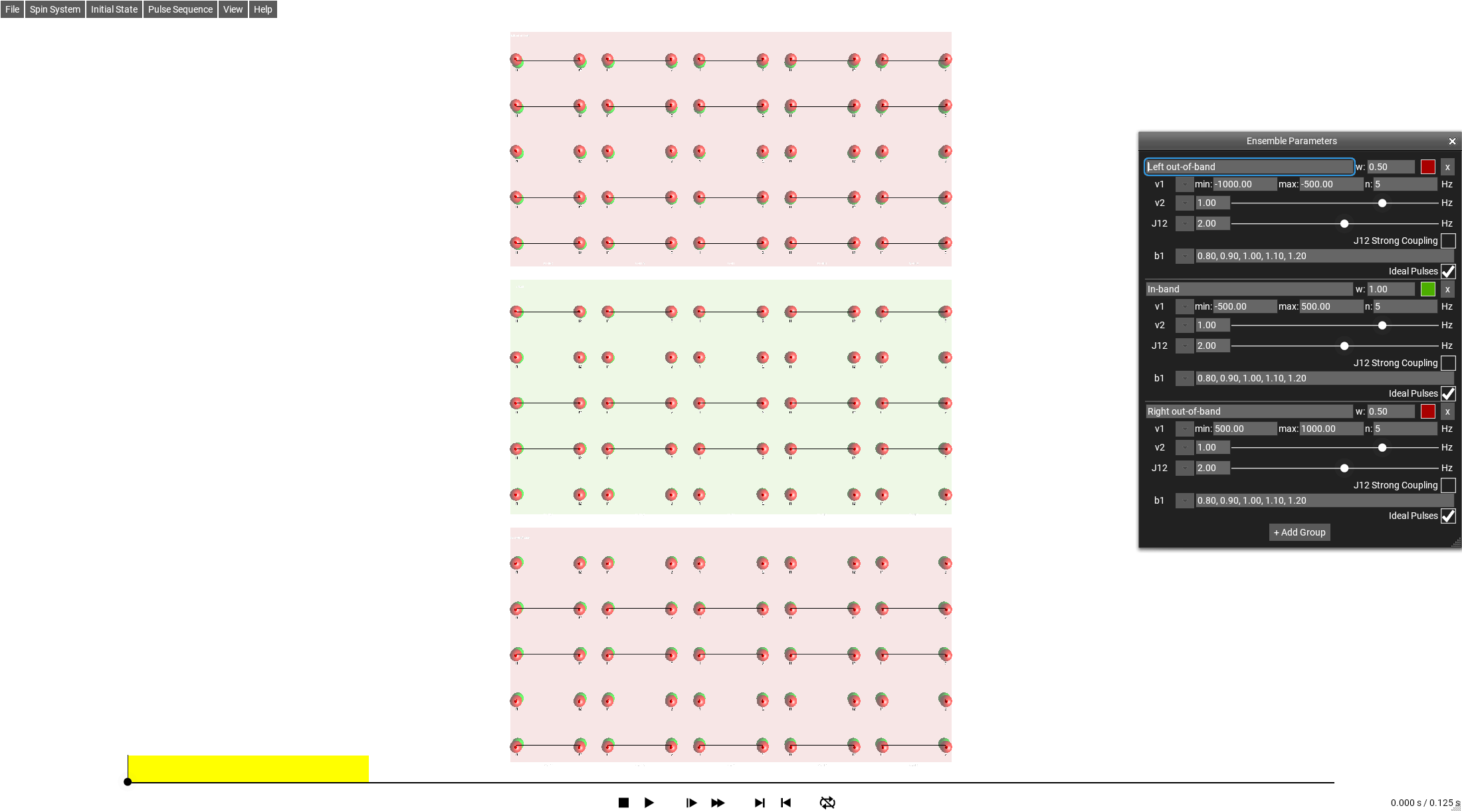
Fig. 38 Three ensemble groups with offset intervals and B1 inhomogeneity.
Ensemble Visualization
When ensemble parameters are active, the DROPS display arranges multiple copies of the spin operator visualization in a grid:
The first varying parameter maps to the horizontal axis
Additional parameters map to additional grid rows
Multiple groups are stacked vertically, each with its group color as a background tint
For single-spin systems with many ensemble points, SpinDrops automatically switches to a compact Bloch vector grid display.
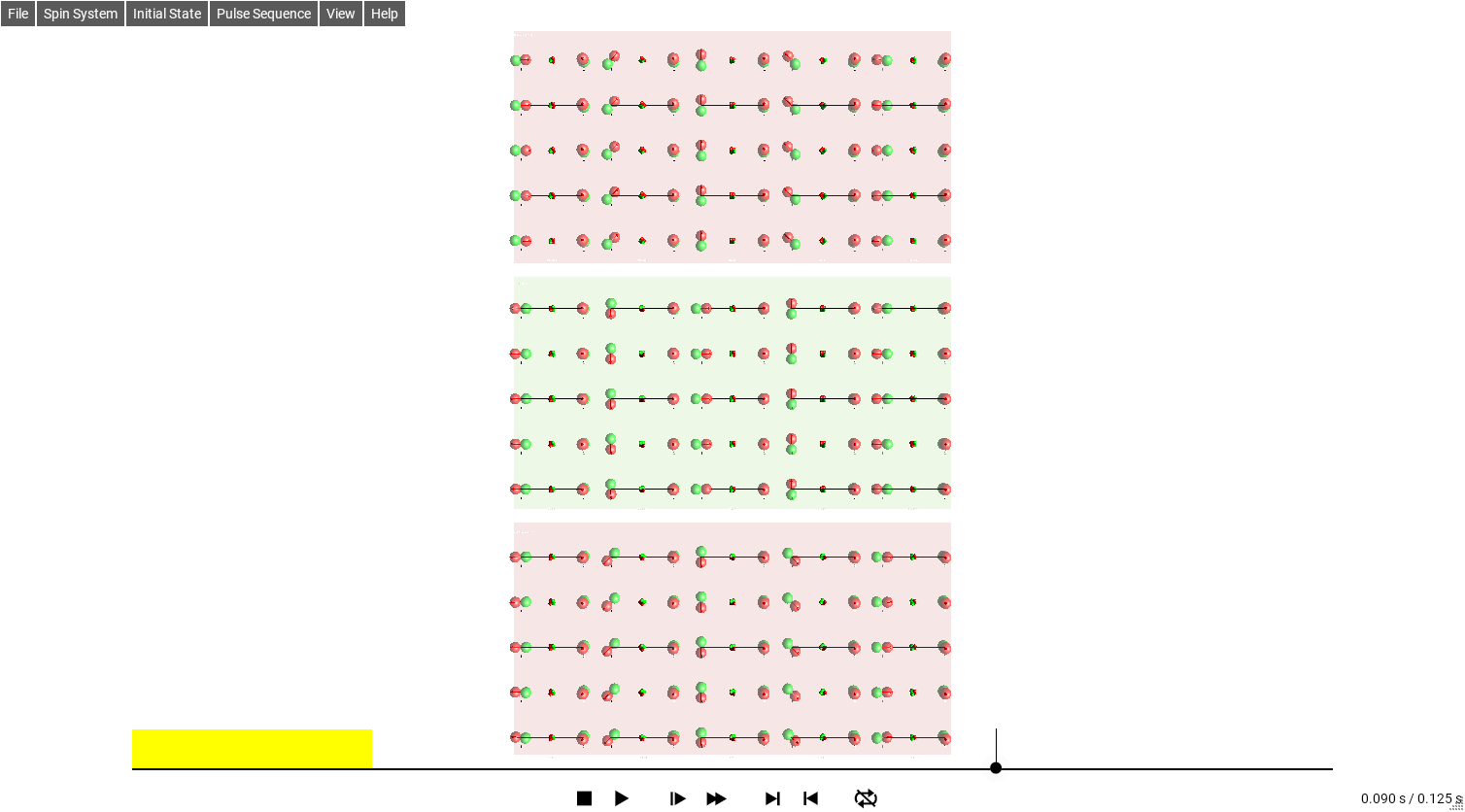
Fig. 39 Ensemble visualization with three groups (in-band and out-of-band offsets with B1 inhomogeneity).
Ensemble and Optimization
The ensemble system integrates with the Sequence Optimizer. Each ensemble group can define its own:
Target state – the desired final state for that group (e.g. \(I_{1x}\) for one group, \(I_{1z}\) for another)
Cost function – Point-to-Point (PP) for state-to-state transfer, or Universal Rotation (UR) for unitary gate design
The optimizer minimizes a weighted sum of costs across all groups:
where \(w_j\) is the weight and \(\theta_j\) are the parameters of ensemble point \(j\), and \(W = \sum_j w_j\).
This enables designing pulse sequences that are robust against parameter variations, or that simultaneously achieve multiple transfer goals.
Ensemble JSON Format
When saving or editing a spin system as JSON (via ), ensemble parameters appear under the
"Ensemble" key. A single group is stored as an object; multiple
groups are stored as an array of objects.
Each parameter is encoded according to its type:
{
  "Ensemble": {
    "name": "Offset sweep",
    "weight": 1.5,
    "v1": {"min": -500, "max": 500, "n": 21},
    "J12": [100, 120, 140],
    "b1": 1.0
  }
}
Scalar: a JSON number (
"b1": 1.0)List: a JSON array (
"J12": [100, 120, 140])Interval: a JSON object with
min,max, andnkeys
Initial State Graphical Edit Window
The menu selection opens this window.
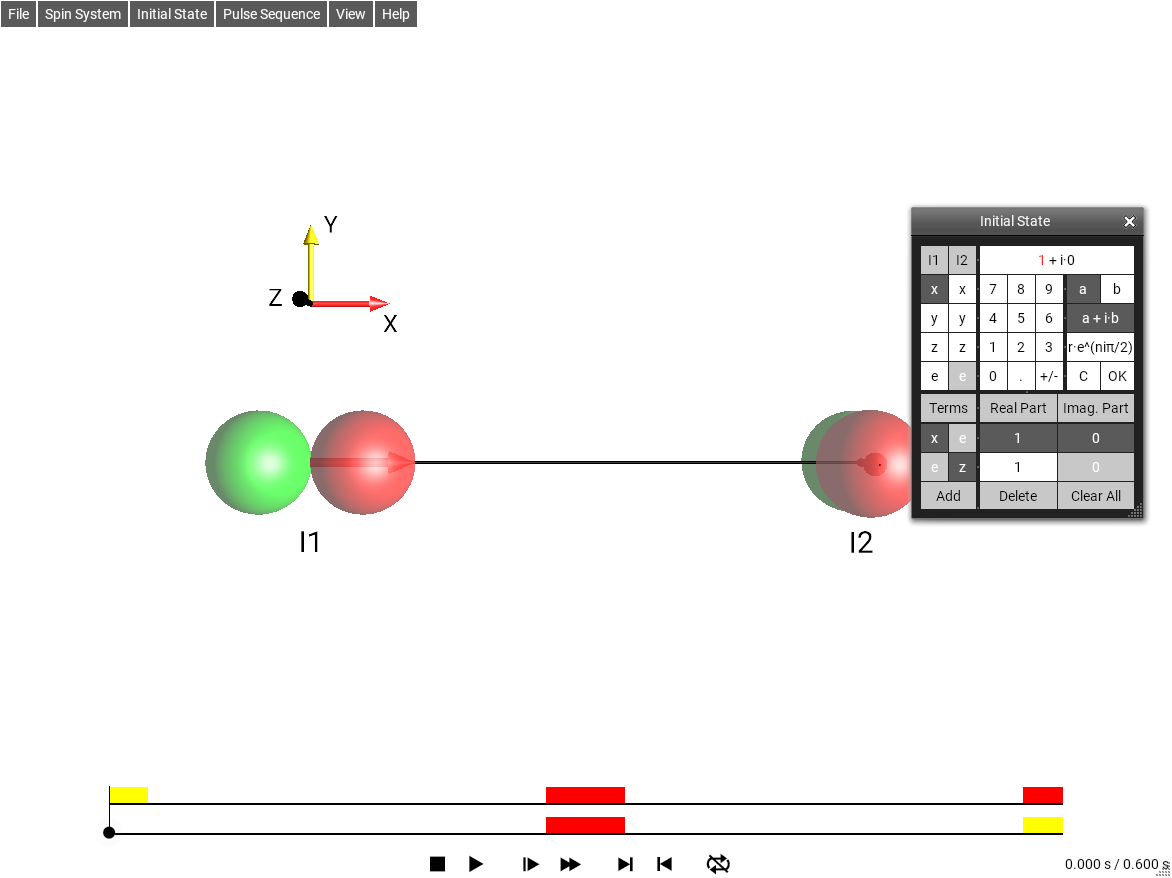
Fig. 40 Graphical Initial State Editor
Initial State Textual Edit Window
The menu selection opens this window.
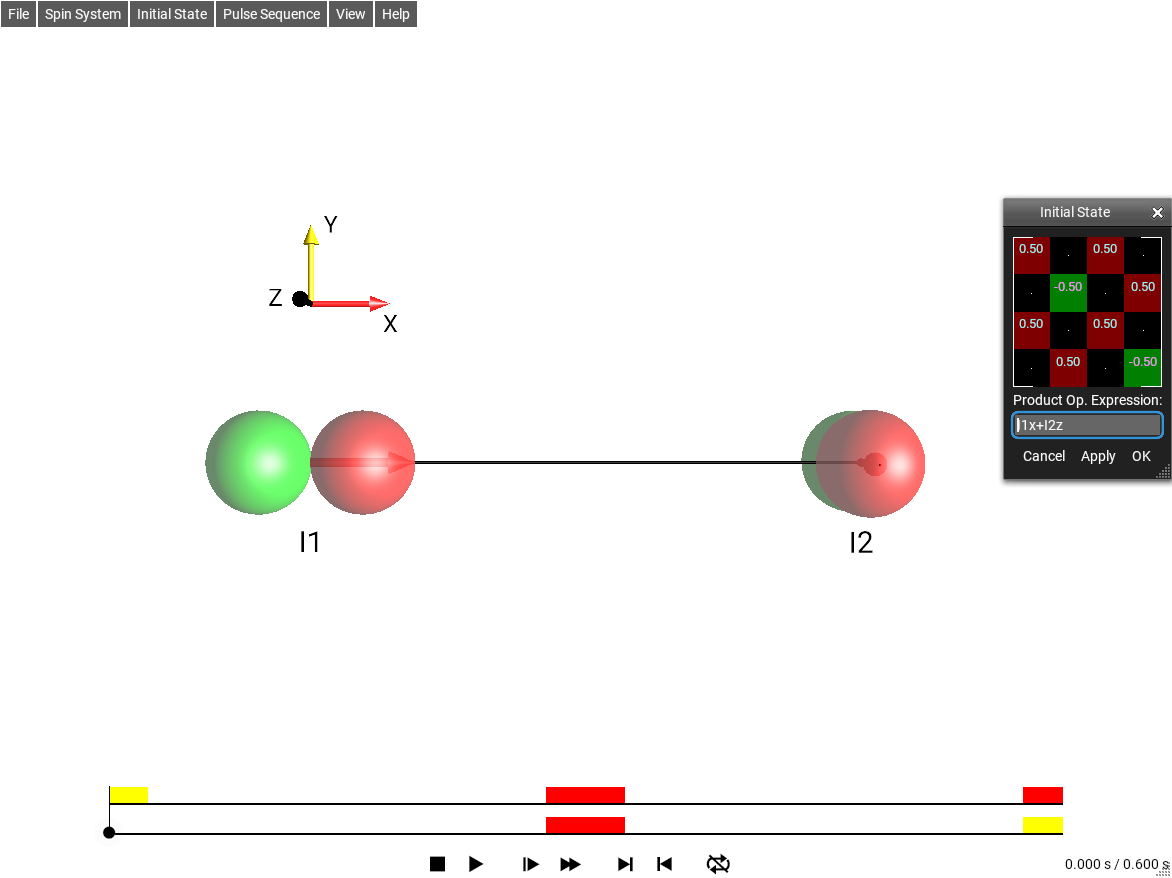
Fig. 41 Textual Initial State Editor
Product operators can be specified here in a syntax we call
Plain Text Operator Notation which looks like \(I_{1x}I_{2z}\), or by using raw matrix
expressions. The raw matrix expressions can only specify matrices of
fixed size, so will only be applicable to a particular sized spin
system. The syntax for the matrix expressions is somewhat
octave/matlab-like. For example, \(Ix\) would be specified as
[0,0.5;0.5,0] - individual values are separated by commas and
rows are separated by semi-colons. See the EigenLab Cheat Sheet
for a summary of the supported syntax.
Operator Inspector Window
The menu selection opens this window. It can be used to inspect and
explore operator expressions. The functions rho() and
t_() can be used to query information from the simulation.
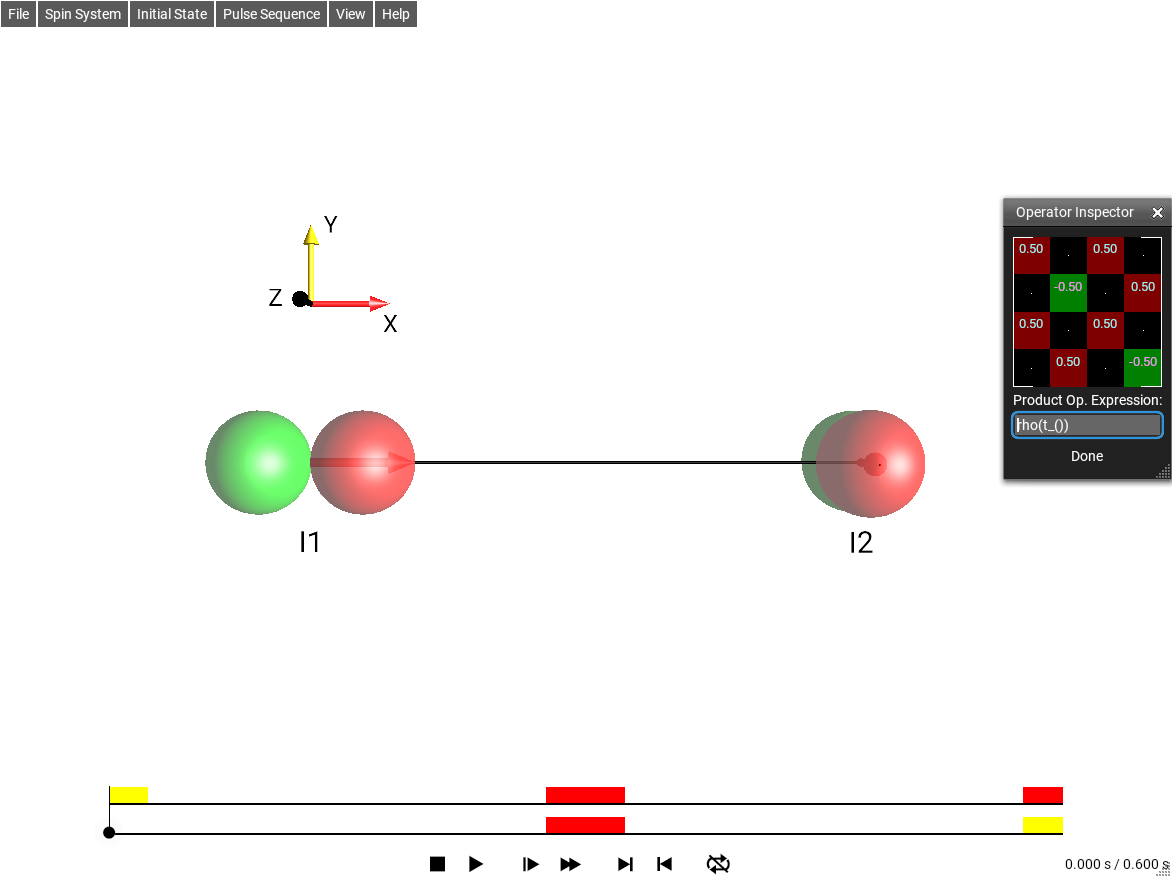
Fig. 42 Operator Inspector
Tabular Pulse Sequence Editor
The menu selection opens this window. It provides an interface for editing simple pulse sequences.
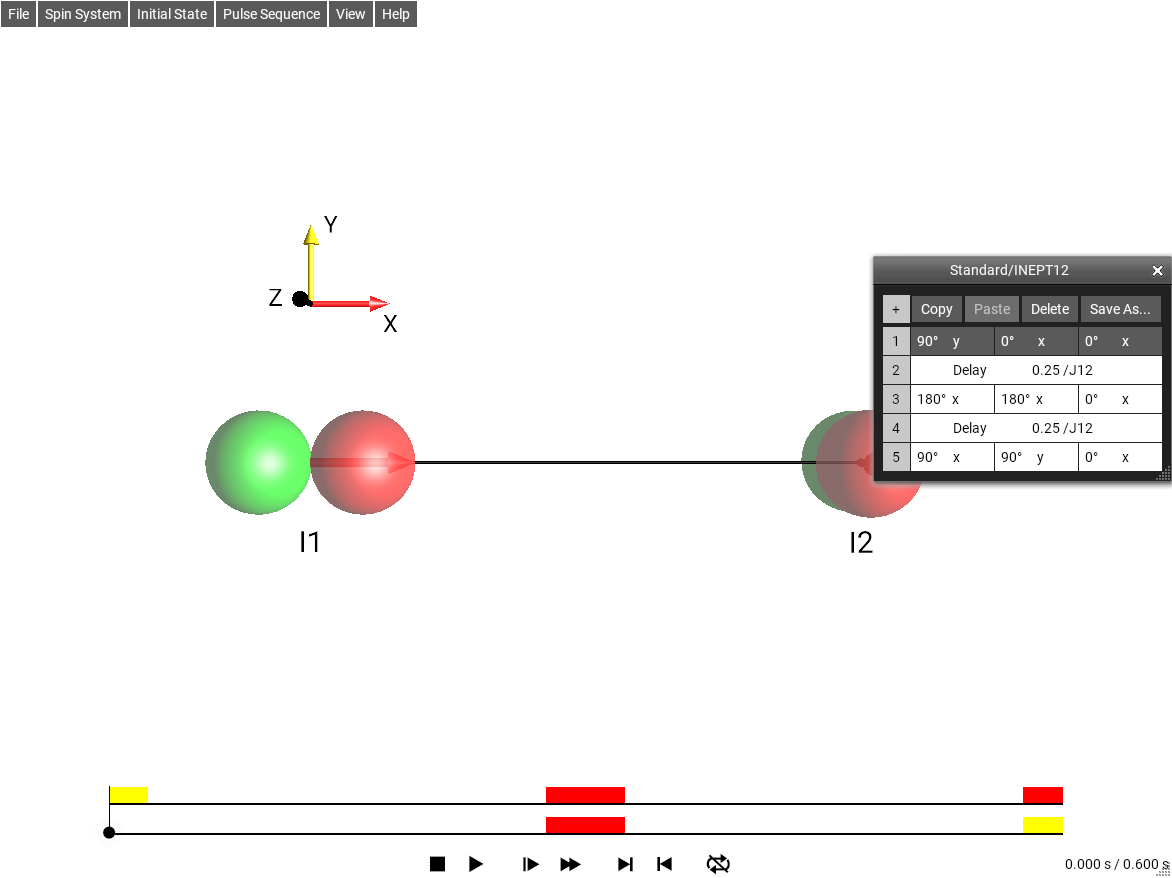
Fig. 43 Simple Sequence Editor
Pulse Sequence Explorer Window
The menu selection opens this window.
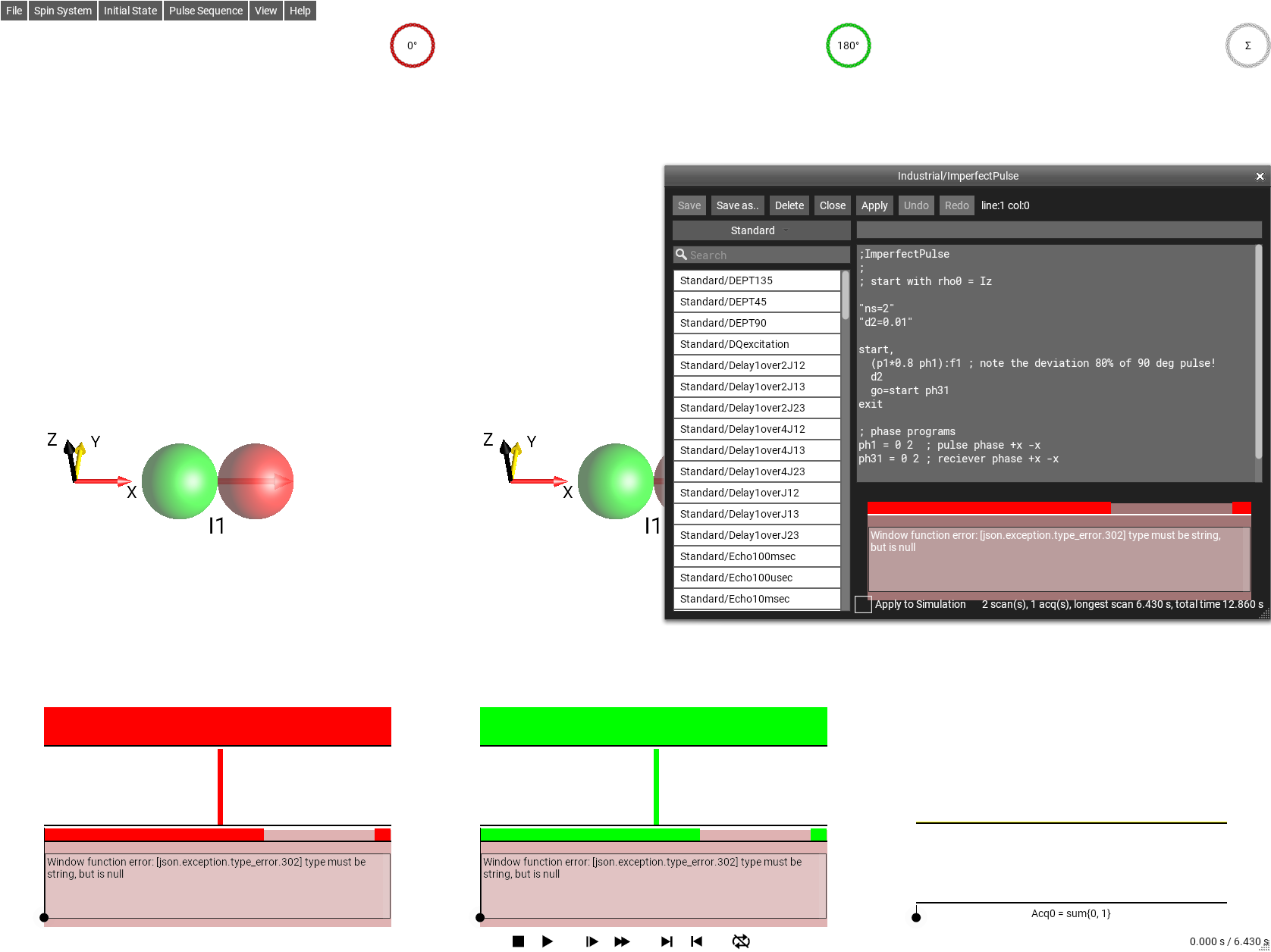
Fig. 44 Pulse Sequence Explorer
Show Raw Sequence
This checkbox in the Pulse Sequence Explorer Window enables the raw editing of the JSON that defines table-type sequences. Normally these sequences can be edited using the table-editor.
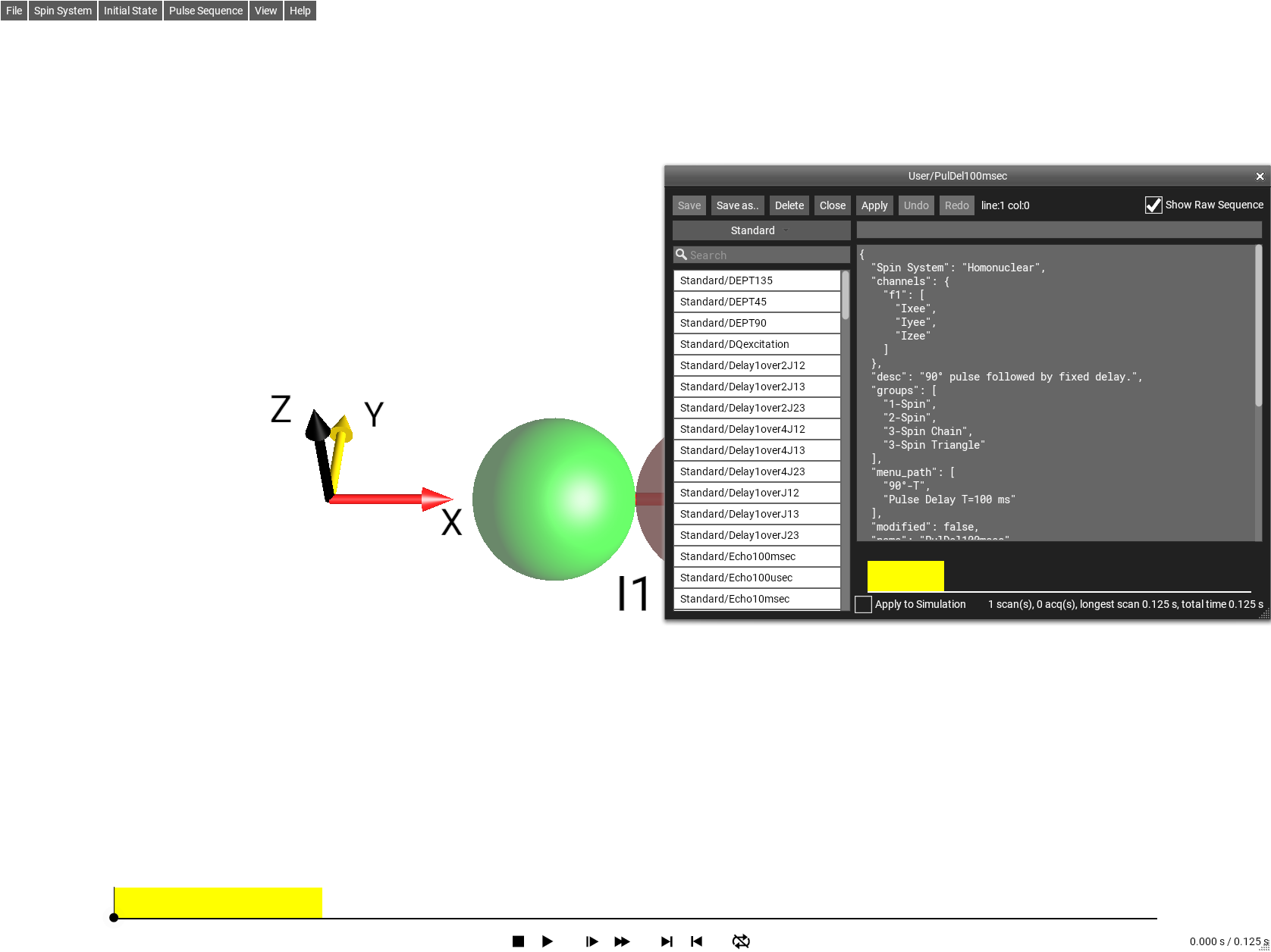
Fig. 45 Raw JSON sequence view
Apply to Simulation
This checkbox in the Pulse Sequence Explorer Window enables continuous update of the simulation as the sequence text is edited.
Pulse Sequence Optimizer Window
The menu selection opens this window.
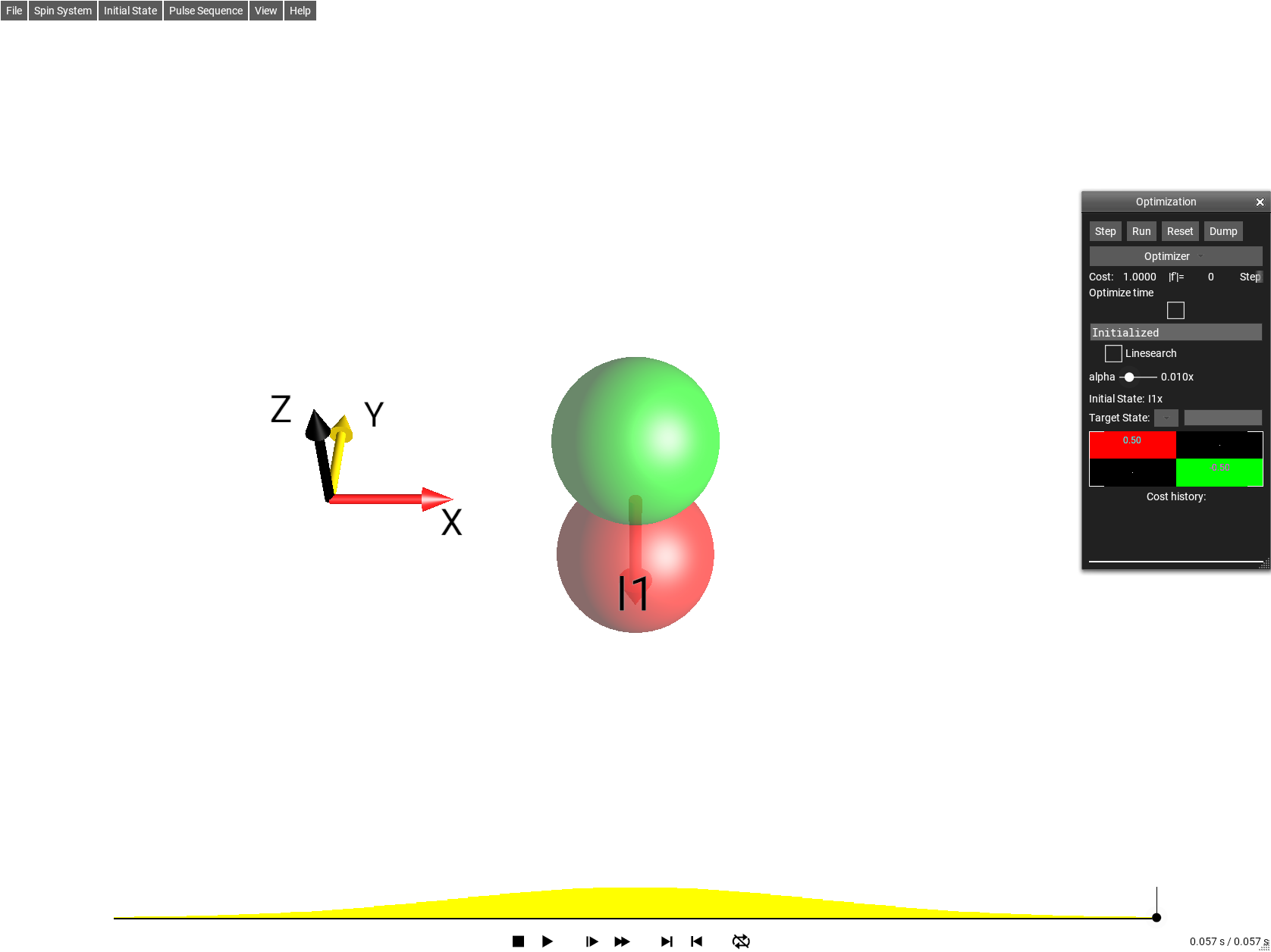
Fig. 46 Pulse Optimizer
This window optimizes the pulse sequence according to a cost function - which is some distance measurement between the final simulation state (the Density Operator at the end of the simulation time) and a “target state”. The target state can be set in the text box Target. More information about sequence optimization and this tool can be found under Sequence Optimizer.
Pulse Explorer Window
The menu selection opens this window.
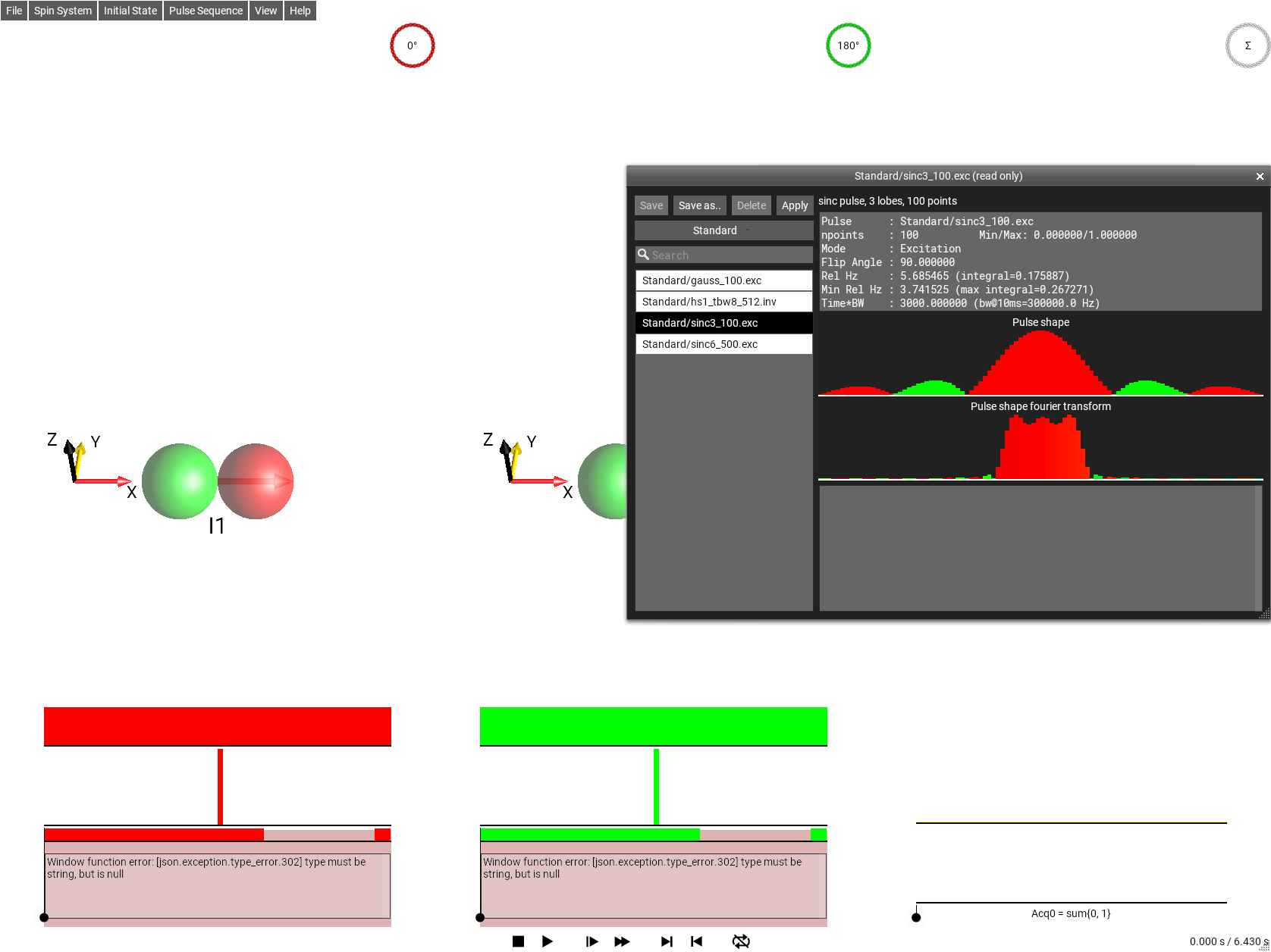
Fig. 47 Pulse Explorer Window
Todo
finish description
Phase Color Ref Window
The menu selection opens this window.
List Prod. Ops Window
The menu selection opens this window . A list of the current Density Operator factored into the Cartesian Product Operator basis is displayed by default. Right-clicking (or long-clicking) on the window brings up a list of other possible bases by which the Density Operator can be factored. This list can be hidden by closing the window.
View Operator Windows
There are a number of Operator viewing windows. They all have the same behavior, but display different operators for different aspects of the experiment.
The set of operators that can be displayed are:
the Density Operator
the Hamiltonian
the Effective Hamiltonian
the (effective) Propagator
the (current) Propagator
Any of these Operators can be viewed in a number of different ways. There are three basic views of an Operator in SpinDrops: 1) the DROPS Representation, 2) raw matrices, and 3) basis decomposition.
Right-clicking (or long-clicking) on an Operator Viewing window brings up a menu that selects the viewing mode for the window. This presents different ways to view the operator:
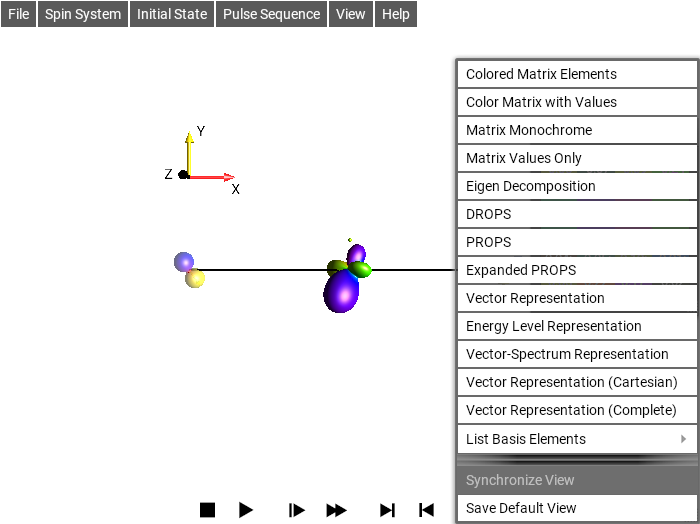
Fig. 48 Operator View Menu
Colored Matrix Elements
This draws the Operator as a matrix. It uses the matrix elements’ phase to color the background of the entry, and it does NOT show any numerical values.
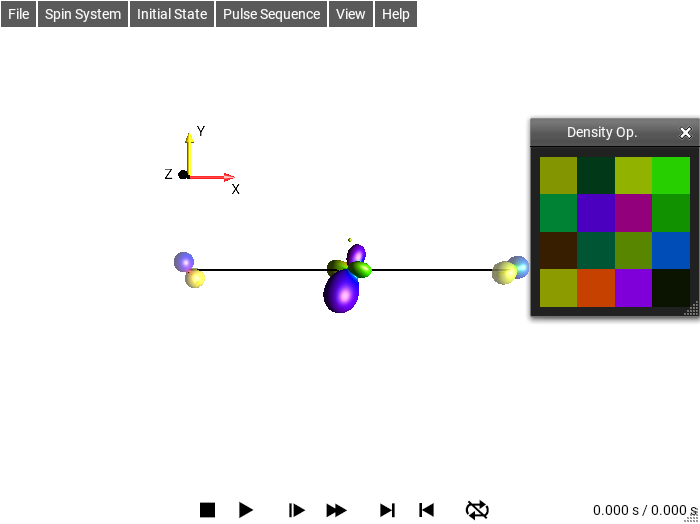
Fig. 49 ‘Colored Matrix Elements’ view
Color Matrix with Values
This shows the Operator as a matrix. It uses the matrix elements’ phase to color the background of the entry, and draws the numerical value of the entries in a contrasting color.
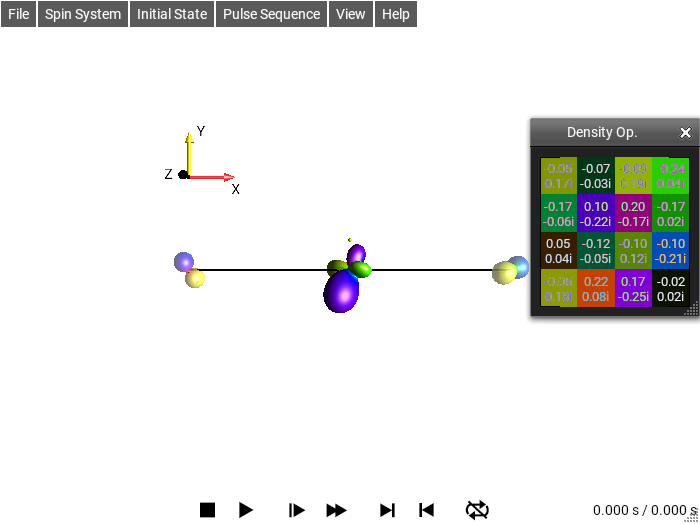
Fig. 50 ‘Color Matrix with Values’ view
Matrix Monochrome
This shows the Operator as a numeric matrix, using the Foreground and Background colors for the fore- and background, respectively.
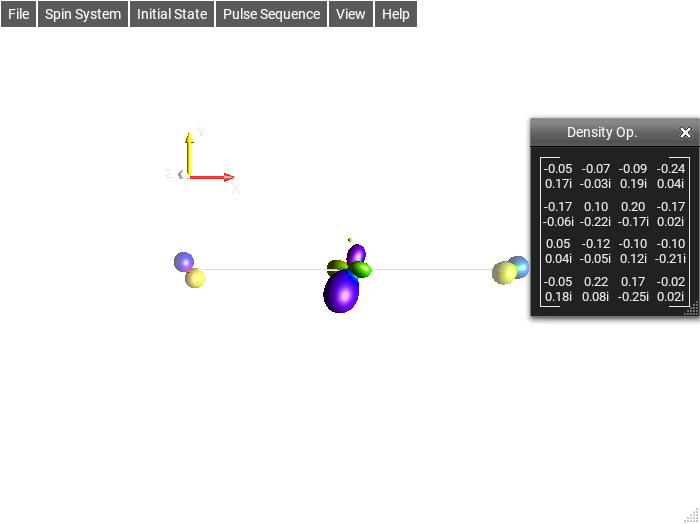
Fig. 51 ‘Matrix Monochrome’ view
Matrix Values Only
This shows the Operator as a numeric matrix, using the phase of the entries to choose the color to draw the entry. This is similar to the Color Matrix with Values, but instead of using the phase color for the background, it is used for the text itself.
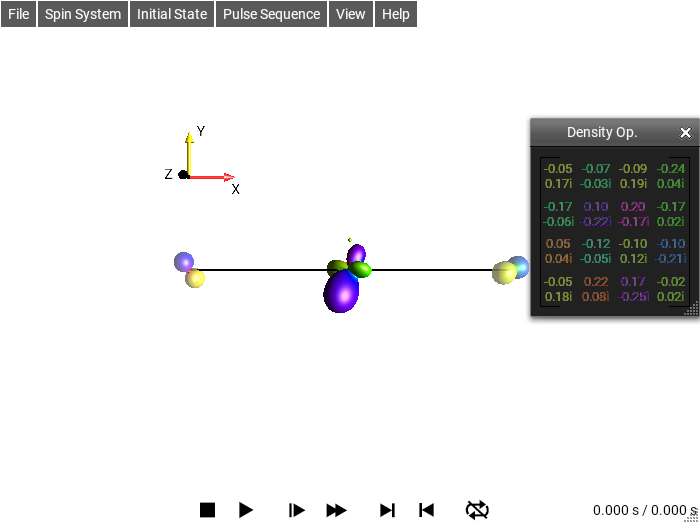
Fig. 52 ‘Matrix Values Only’ view
Eigen Decomposition
This view of an operator presents an eigen value/eigen vector decomposition of the operator’s matrix representation. The view is non-square, with the left-most column showing the eigenvalues, and the “matrix part” displaying the eigenvectors as columns of the matrix.
The eigenvalues are first sorted by amplitude and then phase (if the amplitudes are the same, then the phase determines the order). The remaining \(N\) columns of the matrix are the eigenvectors. If there are non-unique eigenvalues, the eigenvalues will be sorted by the entries of the eigenvectors. The eigen decomposition of some, particularly (nearly-) unitary matrices is not necessarily numerically stable, so small changes in, for example, a time duration may change the display suddenly.
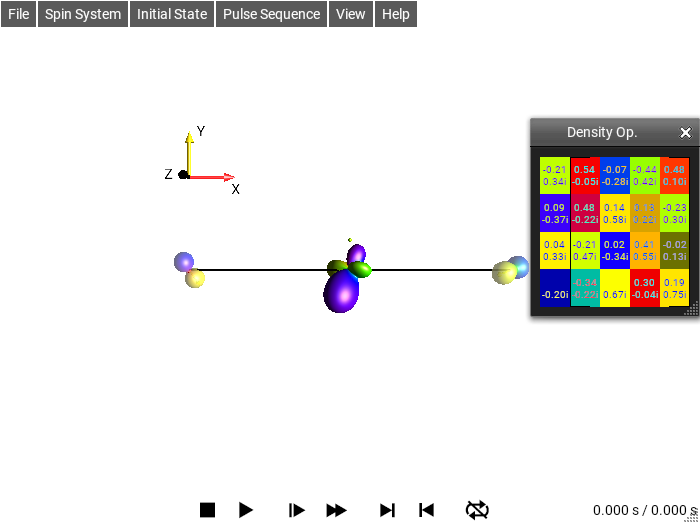
Fig. 53 ‘Eigen Decomposition’ view
DROPS
This shows the selected Operator using the currently selected DROPS Representation. This display is explained in detail in the section DROPS Representation.
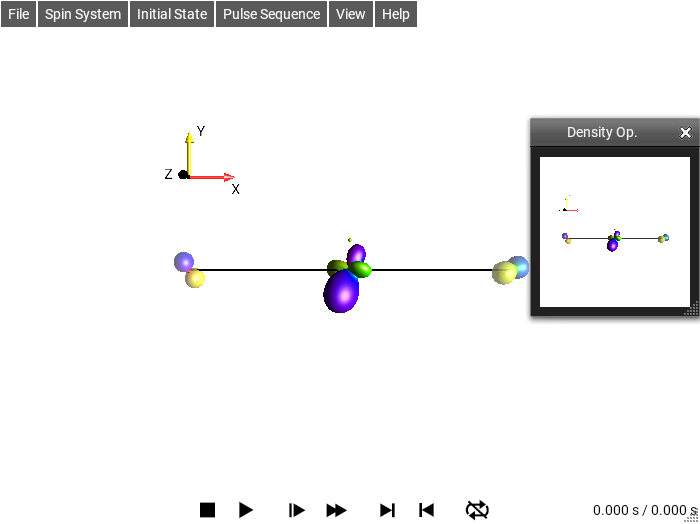
Fig. 54 ‘DROPS’ view
List Basis Elements
This mode decomposes the Operator into the selected basis. There are a number of common bases available:
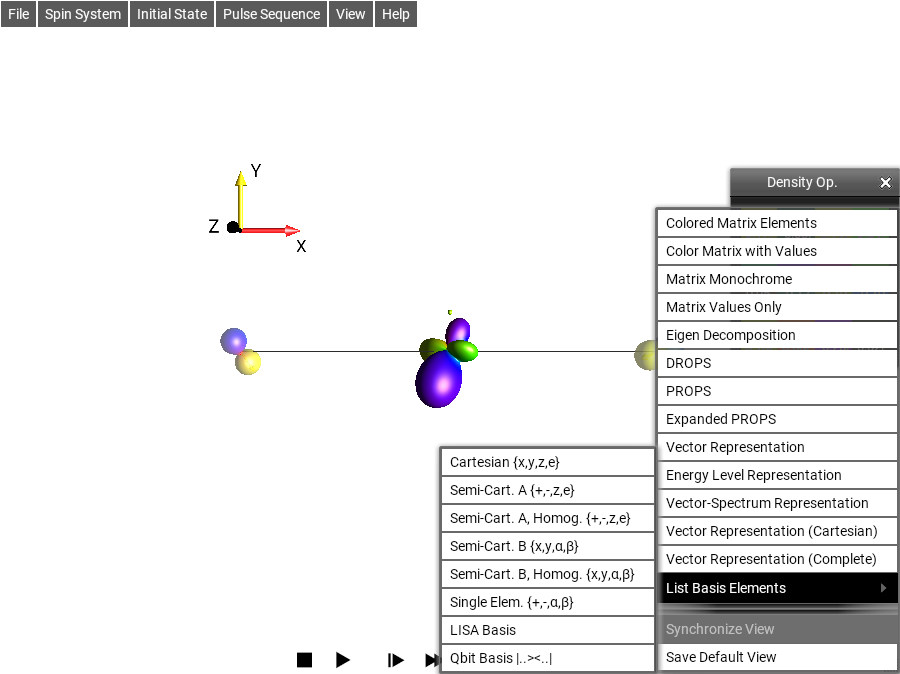
Fig. 55 Basis selection menu
Basis name |
Product Elements |
|
|---|---|---|
Cartesian {x,y,z,e} |
\(I_x,I_y,I_z,I_e\) |
See Cartesian Basis. |
Semi-Cart. A {+,-,z,e} |
\(I^+,I^-,I_z,I_e\) |
See Semi-Cartesian Basis. |
Semi-Cart. A, Homog. {+,-,z,e} |
\(I^+,I^-,I_z,I_e\) |
See Semi-Cartesian Basis. |
Semi-Cart. B {x,y,α,β} |
\(I_x,I_y,I_\alpha,I_\beta\) |
See Semi-Cartesian Basis. |
Semi-Cart. B, Homog. {x,y,α,β} |
\(I_x,I_y,I_\alpha,I_\beta\) |
See Semi-Cartesian Basis. |
Single Elem. {+,-,α,β} |
\(I^+,I^-,I_\alpha,I_\beta\) |
See Single Element Basis. |
LISA Basis |
See LISA Basis. |
|
Qubit Basis |
\(|0\rangle\langle{0}|,|0\rangle\langle{1}|,|1\rangle\langle{0}|,|1\rangle\langle{1}|\) |
See Qubit Basis. |
Cartesian Basis
The Cartesian basis elements are defined to be generators of rotation such that, ie \(e^{-i \frac{\pi}{2} I_y} I_z e^{i \frac{\pi}{2} I_y} = I_x\). The scalar product here is defined as \(\langle A_i | A_j \rangle = Tr(A_i^\dagger A_j)\), and the norm \(||A_i|| = \sqrt{\langle A_i | A_i \rangle}\).
Thus, while the Cartesian product operator basis is orthogonal, and all basis elements have the same norm, it is generally not normalized in the sense of \(||A_i|| = 1\) (except specifically in the 2-spin case). For 1-, 2-, and 3- spin systems, the norms of the Cartesian product operator basis elements, \(B_r\), are
\(B_r\) |
\(|| B_r ||\) |
|
|---|---|---|
1 spin |
\(I_x\) |
\(\frac{1}{\sqrt 2}\) |
2 spin |
\(I_{1x}\) |
\(1\) |
2 spin |
\(2I_{1x}I_{2y}\) |
\(1\) |
3 spin |
\(I_{1x}\) |
\(\sqrt 2\) |
3 spin |
\(2I_{1x}I_{2y}\) |
\(\sqrt 2\) |
3 spin |
\(4I_{1x}I_{2y}I_{3z}\) |
\(\sqrt 2\) |
N spin |
\(2^{q-1}\prod^q I_d \quad d \in \{x,y,z\}\) |
\(2^{\frac{N}{2}-1}\) |
Spherical Tensor Basis
The spherical tensor basis decomposes operators in terms of irreducible spherical tensor operators \(T_{jm}\), where \(j\) is the rank and \(m \in \{-j, \ldots, j\}\) is the order. For a single spin \(I\), the spherical tensor operators are related to the Cartesian operators by
This basis has favorable transformation properties under rotations: a rotation mixes tensor components of the same rank \(j\) but different orders \(m\), without mixing different ranks. This property makes it the natural basis for the DROPS representation, where each tensor rank maps directly to a spherical harmonic \(Y_{jm}\) to produce the droplet shapes.
In SpinDrops, the spherical tensor basis is not offered directly in the List Basis Elements menu. Instead, the closely related Semi-Cartesian Basis A-type ({+,-,z,e}) provides a product operator decomposition built from the same raising/lowering and \(I_z\) operators. The LISA basis used by the DROPS display is also constructed from spherical tensor operators; see Mathematical Background of the DROPS Visualization for details.
Single Element Basis
The Single Element basis decomposes operators into products of the elements \(I^+\), \(I^-\), \(I^\alpha\), and \(I^\beta\) (see Table Table 1 for their matrix forms). Each basis element is a single matrix entry – a matrix with exactly one non-zero element – hence the name “single element.”
The generating operators in matrix form are:
Product operators in this basis are formed as tensor products of these four elements. For example, in a two-spin system the 16 basis elements are \(I_{1}^{\alpha}I_{2}^{\alpha}\), \(I_{1}^{\beta}I_{2}^{\alpha}\), \(I_{1}^{+}I_{2}^{\alpha}\), \(I_{1}^{-}I_{2}^{\alpha}\), …, \(I_{1}^{-}I_{2}^{-}\). Each such product operator corresponds to a matrix with exactly one non-zero entry, making it equivalent to the Qubit Basis but with NMR-style naming.
The Single Element basis is available in SpinDrops through the List Basis Elements menu as Single Elem. {+,-,α,β}. It is useful for identifying individual matrix elements of an operator and for working with populations (\(I^\alpha\), \(I^\beta\)) and single-quantum coherences (\(I^+\), \(I^-\)) directly.
In PTON, the characters
p, m, a, b are used for
\(+, -, \alpha, \beta\), respectively. For example,
I1aI2b represents \(I_{1}^{\alpha}I_{2}^{\beta}\).
Semi-Cartesian Basis
The List Basis Elements offers four different Semi-Cartesian Basis decompositions. These consist of two different selections of generating operators (A and B), each of which can have different scalings of the individual basis elements (Regular and Homogenous scalings).
As a reminder, the one spin basis elements in matrix form are shown in Table Table 1.
\[\begin{split}I_x = \frac{1}{2} \begin{bmatrix}
0 & 1 \\
1 & 0
\end{bmatrix}\end{split}\]
|
\[\begin{split}I_y = \frac{1}{2} \begin{bmatrix}
0 & -i \\
i & 0
\end{bmatrix}\end{split}\]
|
\[\begin{split}I_z = \frac{1}{2} \begin{bmatrix}
1 & 0 \\
0 & -1
\end{bmatrix}\end{split}\]
|
\[\begin{split}I_e = \frac{1}{2} \begin{bmatrix}
1 & 0 \\
0 & 1
\end{bmatrix}\end{split}\]
|
|---|---|---|---|
\[ \begin{align}\begin{aligned}\begin{split}I^+ = I_x + iI_y = \\\end{split}\\\begin{split}\begin{bmatrix}
0 & 1 \\
0 & 0
\end{bmatrix}\end{split}\end{aligned}\end{align} \]
|
\[ \begin{align}\begin{aligned}\begin{split}I^- = I_x - iI_y = \\\end{split}\\\begin{split}\begin{bmatrix}
0 & 0 \\
1 & 0
\end{bmatrix}\end{split}\end{aligned}\end{align} \]
|
\[ \begin{align}\begin{aligned}\begin{split}I^\alpha = I_e + I_z = \\\end{split}\\\begin{split}\begin{bmatrix}
1 & 0 \\
0 & 0
\end{bmatrix}\end{split}\end{aligned}\end{align} \]
|
\[ \begin{align}\begin{aligned}\begin{split}I^\beta = I_e - I_z = \\\end{split}\\\begin{split}\begin{bmatrix}
0 & 0 \\
0 & 1
\end{bmatrix}\end{split}\end{aligned}\end{align} \]
|
The A-type Semi-Cartesian basis is composed of product operators created from the elements \(I^+\), \(I^-\), \(I_z\), and \(I_e\) (\(\frac{1}{2}E\)).
The B-type Semi-Cartesian basis is composed of product operators generated from the elements \(I_x\), \(I_y\), \(I^\alpha\), and \(I^\beta\).
The Regular (non-Homogenous) element scaling simply defines the elements of the basis as the unscaled products of the terms from Table Table 1. For a concrete example, take a three-spin-1/2 operator in the A-type Semi-Cartesian basis \(I_{1}^{+}I_{2}^{-}I_{3z}\), defined as \(I^+ \otimes I^- \otimes I_z\). The norm of this operator (\(|I_{1}^{+}I_{2}^{-}I_{3z}|\)) is \(xxx\), but in the Homogenous basis, it is rescaled so that it only represents a direction, so to say, and has the same norm as, say, \(I_{1x}\): \(xxx\).
A basis element \(B\) is written below by defining \(q\) as the number of \(x,y,z\) terms, and \(q'\) as the number of single element terms (\(+,-,\alpha,\beta\)) :
Defining
the regular scaling of the elements B is
and the Homogenous scaling is
This table provides some more concrete examples:
Qubit Basis
The basis elements are actually the same as the Single Element Basis elements, but use naming familiar to the Quantum Information community. The elements are named using bra-ket notation, in the form of a ket followed by a bra. The wave function name contained within the bra-kets is a bit string identifying the state. For example, a two-level system has the pure states \(\lvert0\rangle\) and \(\lvert1\rangle\), a four level system has pure states \(\lvert00\rangle\), \(\lvert01\rangle\), \(\lvert10\rangle\), and \(\lvert11\rangle\), and so on for each additional quantum bit.
The operators of the density operator basis are then composed by ket-bra combinations of these states, ie for a two level system: \(\lvert1\rangle\langle{1}\rvert\). Each operator basis element in matrix form has exactly one non-zero (unitary) entry, which can be though of also as the matrix element at the (row,column) corresponding to the (ket,bra) pair: \(\lvert1\rangle\langle{0}\rvert\) is a 2x2 matrix with a \(1\) at (row 1, column 0) and zeros elsewhere. For larger systems, the addresses can be interpreted as binary numbers for the (row,column): \(\lvert11\rangle\langle{10}\rvert\) is a 4x4 matrix with a \(1\) at (row \(11b\), column \(10b\)), ie (row 3, column 2):
Operators from the Qubit Basis can also be used in defining the initial
state and in sequence definitions by using the associated PTON
notation, which in this example would
be |11><10|.
Density Operator Window
The menu selection opens this window. This is one of the View Operator Windows, it shows the Density Operator: \(\rho(T)\) where \(T\) is the current time.
Hamiltonian Window
The menu selection opens this window. This is one of the View Operator Windows, it shows the Hamiltonian Operator: \(\frac{\mathcal{H}(T)}{2\pi}\) where \(T\) is the current time. It has the same features as all View Operator Windows. An expression for the current Hamiltonian can be seen by enabling the Show Details preference setting.
Effective Hamiltonian Window
The menu selection opens this window. This is one of the View Operator Windows, it shows the Effective Hamiltonian Operator, \(\mathcal{H_{\text{eff}}}(T)\) where \(T\) is the current time.
The Effective Hamiltonian is defined as the time-constant Hamiltonian that would produce the current propagation until the current time, \(T\). It is closely related to the propagator \(U(T)\) displayed in the Propagator Window, and defined as
Using the matrix \(log()\) in this case can sometimes produce unexpected results. There is not necessarily a unique solution B that satisfies B = log(A); for a given A, also C = log(A) can be true, where B neq C. Due to the way log(A) is calculated, small changes to the argument, ie A+epsilon can produce large sudden changes is the value of log(A), as the solver jumps between different smoothly connected solutions B’ and C’.
Propagator Window
The menu selection opens this window. This is one of the View Operator Windows, it shows the Propagator as an Operator, \(U(T)\), where \(T\) is the current time.
\(U(T)\) is defined in terms of an experiment consisting of \(n+1\) time periods having constant Hamiltonians for each per \(\mathcal{H_0} .. \mathcal{H_n}\), each of duration :math:\(\tau_k\), and defining the start of a period \(t_0 = :math:0, t_{k|k>0} = \sum_{n=0}^{k-1} \tau_n\), the propagator of a :math:period \(U_k = exp(-i \mathcal{H_k} \tau_k)\), and the index :math:\(m\) of the period in which the time \(T\) can be :math:found, \(m \text{ s.t. } t_m < T < t_{m+1}\) .
Elem. Propagator Window
The menu selection opens this window. This is one of the View Operator Windows, it shows the propagator for the current time segment as an Operator, \(U_k([T_k,T_{k+1}])\), where \(T_k\) is the beginning of the current sequence element \(k\) containing \(T\).
Notice that this is a different propagator from the one defined in the Propagator Window. This propagator is only for a single, entire pulse sequence element, wherease the Propagator Window shows the effective propagator from the beginning of the sequence until the current time point.
This is simply \(U_k = exp(-i \mathcal{H_k} \tau_k)\), where \(\mathcal{H_k}\) is the Hamiltonian for the current time period.
About Window
The about window displays information about the current version of SpinDrops, the environment that SpinDrops is currently running on, some current low-level settings, and, on desktop versions, a short summary of the Keyboard Shortcuts.
Preferences
This section details the user-configurable settings of SpinDrops. These settings can be controlled from the Preferences Window which can be opened from the menu .
DROPS
Apply RX Phase
When this option is enabled, the Density Operator is shown in the DROPS Display with the receiver phase applied. For example, if the sequence sets the receiver phase to 180°, and the current Density Operator is \(I_{1x}\), then the DROPS display will show the Operator \(e^{-i \pi} I_{1x}\), ie \(-I_{1x}\), the phase of the receiver will also be indicated by the color of the “coil” icon and label in the top-right corner of the DROPS display. When the “coil” icon is not present, the receiver phase is \(0°\).
Fig. 56 and Fig. 57 show the same sequence. The sequence has two sub-sequences with different receiver phases. The first sub-sequence is a 90°x pulse followed by an acquisition with the receiver set to x-phase, the second sub-sequence is a 90°(-x) pulse followed by an acquisition followed by an acquisition with the receiver set to -x phase. Enabling the Apply RX Phase option shows the sub-sequence as the receiver would see it, as in Fig. 57, the magnetization appears to be in the -y direction. An important point to note here is that the receiver phase does not change the shapes of the droplets, it only changes the colors.
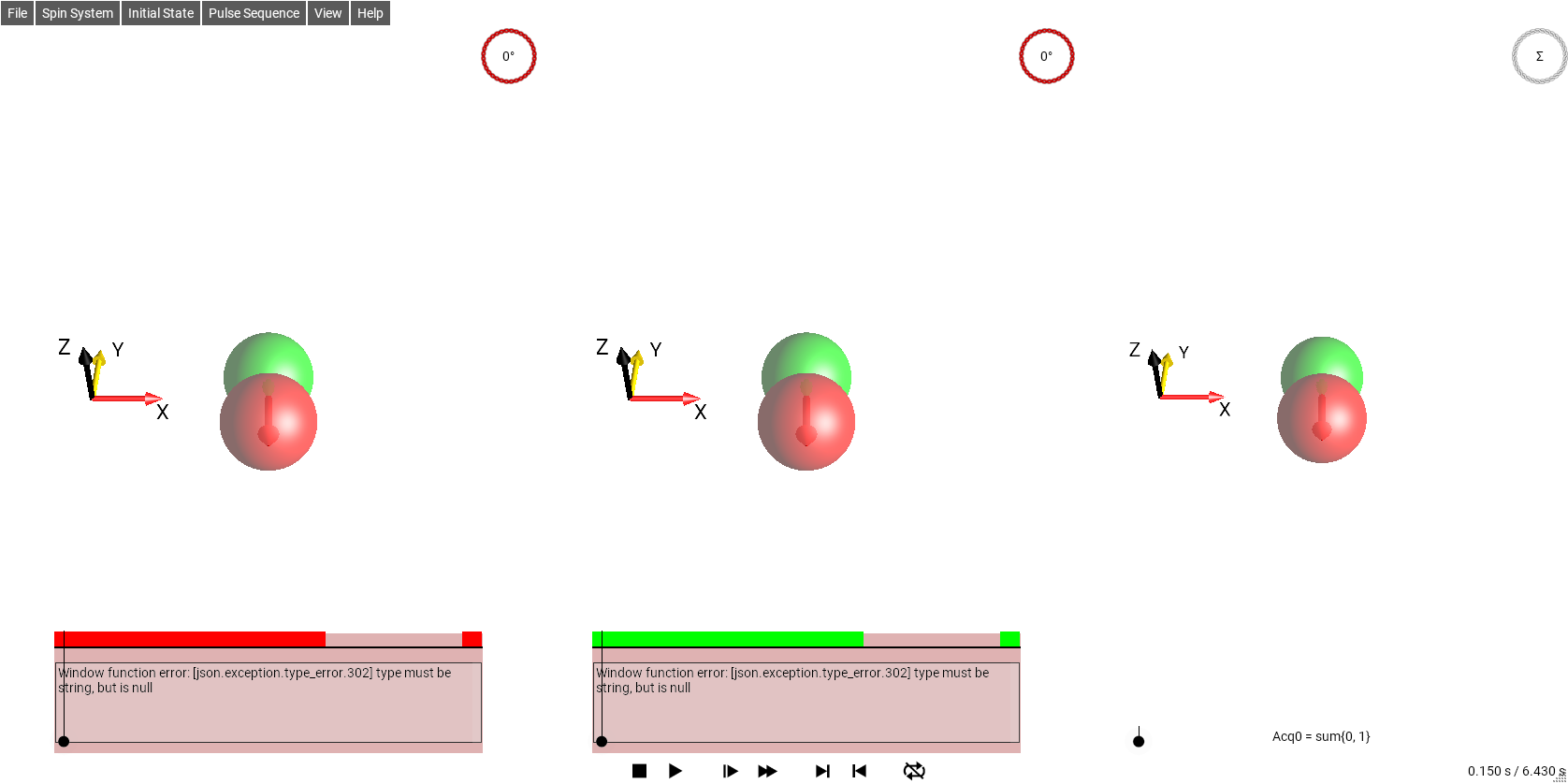
Fig. 56 Sequence with two different RX Phases, Apply RX Phase disabled
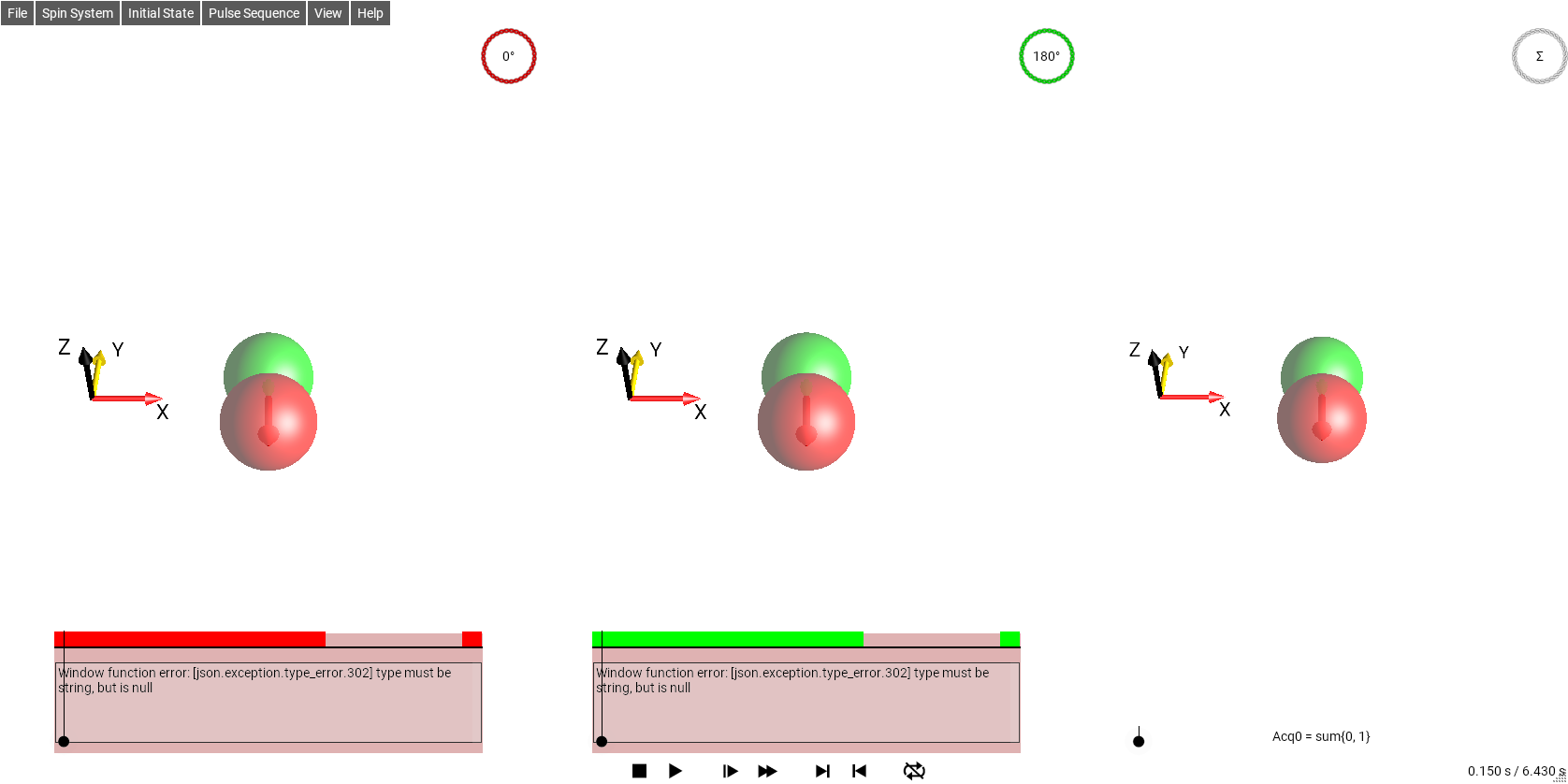
Fig. 57 Sequence with two different RX Phases, Apply RX Phase enabled
This setting does not affect how the signal summation is performed – in the panel on the right, the summation of the sub-experiments is always performed by the pulse sequence’s receiver phase definition.
Extra Droplet Labels
This adds text labels to identify the non-Magnetization Droplets, additionally, droplets that are separated will have labels indicating their rank \(j\) and coherence(s) \(p\).
Hide Couplings
By default, the J couplings between spins are indicated by lines. To remove these lines, select Hide Couplings.
To show the lines again, uncheck Hide Couplings.
Magnetization Droplets
This enables drawing Droplets to represent the magnetization components of the density operator. When it is disabled, no droplet will be drawn for the magnetization. When Magnetization Vectors is enabled, the Magnetization Droplets are drawn transparently, so that the vectors can be seen. But when the Vectors are not drawn, the Magnetization Droplets are drawn opaquely, like the other Droplets.
Magnetization Only
Hide all droplets that are not magnetization droplets. This is useful if for some reason you want to hide the complications of coupling.
Magnetization Vectors
This enables drawing Bloch Vectors at the spin positions representing the magnetization of the respective spin. If Magnetization Droplets are also enabled, those droplets will be drawn semi-transparently so that the Bloch Vectors can be seen.
Show Droplet Labels
This enables the basic Droplet labels on spins I1, I2 and I3. It does not enable the other droplet labels, which are controlled by Extra Droplet Labels.
Show Id Droplet
This enables drawing of the Identity Droplet, which is a sphere indicating the magnitude and phase of the Identity part of the Operator.
Colors
Background
The background color of the SpinDrops App, internally this is stored as a four-valued RGBA color. The alpha channel can be set to transparent to affect the background of saved movie frames and saved DROPS images.
Foreground
The foreground color of the SpinDrops App, internally this is stored as a four-valued RGBA color. This is the color that text and the coupling bars are drawn in. Ideally it should offer some contrast when compared with the Background color.
General
Grid Layout
This setting controls the layout of multiple frames, multiple frames occur when the experiment has several concurrent parts, e.g., for phase cycling. When Grid Layout is enabled, the layout will attempt to lay-out the frames in a square grid. If Grid Layout is not enabled, the frames will be laid out in either rows or columns, depending on the value of the Row Layout setting.
Row Layout
This setting interacts with the Grid Layout setting to determine how multi-frame experiments are displayed. If Grid Layout is disabled, this setting controls whether the frames are laid-out in rows or columns.
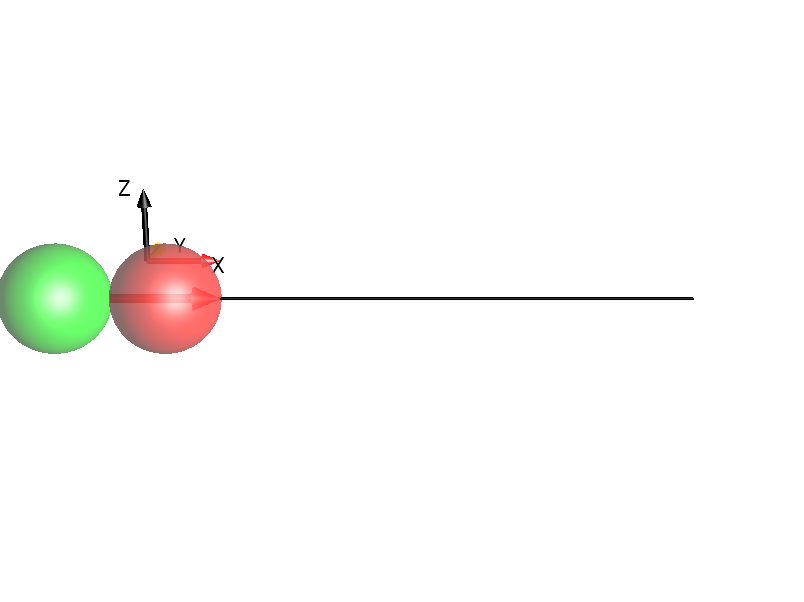
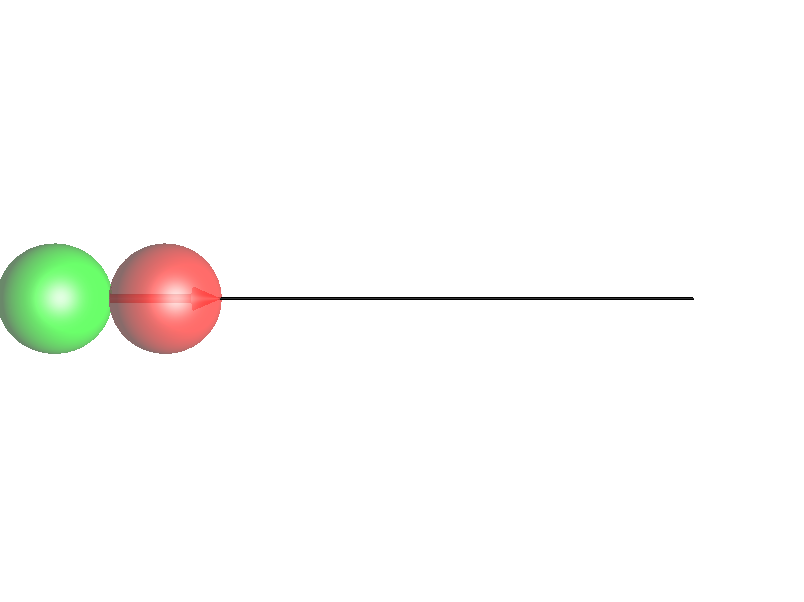
Show Axes
This enables the drawing of a 3D Axes glyph to orient the viewer in 3D space.
‘Show Axes’ Enabled
|
‘Show Axes’ Disabled
|
Show Details
When this option is enabled, extra information about the current sequence and simulation will be drawn in the top right corner of the screen. It includes the current preferences scheme, the current sequence name, the current Hamiltonian and the textual representation of the current Initial State.
Show Pointer
By choosing the option Show Pointer, touch points can be highlighted by orange circles.
This option is particularly useful when the SpinDrops display is projected on a big screen. For example during a lecture, a touch point can be used as a pointer to focus attention on specific items on the screen. This option can also help to explain the effects of touch gestures when the position of the fingers cannot be seen on the big screen, see example below.
Simulation
Ideal Pulses
This setting affects the Hamiltonian that is used to calculate pulse evolution. When it is enabled, the Hamiltonian during pulses will not contain \(H_{\text{free}}\) (ie chemical shift) terms.
Keyboard Shortcuts
The Desktop and Web versions of SpinDrops have a number of keyboard shortcuts to make navigating the UI easier
q e        - Rotate (counter-)clockwise
w s        - Roll forward/backward
a d        - Twist left/right
+ -        - Zoom in/out
< >        - Jump to next/previous sequence element
[ ]        - Jump to begin/end of sequence
shift-.
shift-,    - Jump to next/previous sequence element
* /        - Simulate faster/slower
arrow keys - Slide view around the frame
[space]    - Start/stop simulation
1,2,3      - Change to 1-,2-, or 3-spin systems
4          - Change to 3-spin systems in chain layout
r          - Toggle simulation repeat mode
D          - Open the Density Operator window
E          - Open the Eff. Hamiltonian window
H          - Open the Hamiltonian window
U          - Open the Propagator window
R          - Set a random initial density operator
b          - Load a random sequence
n          - Cycle through separation modes
ctrl-i     - Open the Info window
ctrl-,     - Open the Preferences window
ctrl-.     - Open the Spin System parameter editor
ctrl-d     - Toggle display of details box
ctrl-e     - Open the Sequence Editor
ctrl-f     - Toggle the finger/touch circles
ctrl-F     - Toggle Fullscreen mode
ctrl-l     - Open the list product operator window
ctrl-o     - Open the pton initial operator window
ctrl-O     - Open the graphical operator edit window