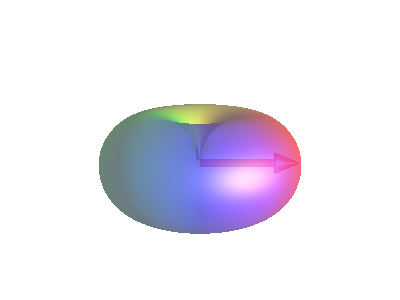
DROPS in Sphinx
The sphinx drops extension adds two roles and one directive to ReST processing. It was used to create most of the SpinDrops example images on this website.
To enable the extensions, install the drops.py extension, and enable
it in your sphinx conf.py file by adding it to the extensions
list:
extensions = ['drops']
ReST Directive
- .. drops:: PTON
The drops directive inserts a DROPS image representing the Plain Text Operator Notation into the docuemnt. It takes a number of options:
:caption:This options can be blank to disable the generation of a caption. Otherwise, it contains text (potentially :pton:) to serve as the figure’s caption
:align:Causes the image to float and align itself on the page in this direcion, valid values are “right” and “left”.
:sequence: <sequence name>Select the sequence to be loaded in the simulation.
:window: <window name>Open the Window named <window name> in SpinDrops, ie List Basis Elems or Preferences.
:prefs:Set preference values in SpinDrops. This can be a ‘;’-separated list of name=value pairs, where the values are json-parseable values, ie
Current Layout=1;Current Separation=0;Show Axes=true:nspin:Set the number of spins in the simulation, can also be accomplished with the
prefsoptions and setting the “Current Layout” appropriately. Additional parameters for the spin offsets, and J-couplings can be provided after a ;. Such an example, for a two spin system with the spins having offsets of 1 and 2, respectively, and a J-coupling of 2.2::nspin: 2; v1=1; v2=2; J12=2.2. Furthermore, a flag can be added to signify that the system should be presented to the simulator as a Homonuclear system thusly:Homonuclear=1.
:pdir:Override default preferences directory. By default, the pdir is chosen based on the
nspinparameter, but this can be overridden by setting this explicitly. The built-in available pdirs aredoc1,doc2,doc3, anddoc3c.:time:Set the simulation time.
:height:The height of the image, either as a px value, or a percentage of the width.
:width:Set the width of the image, either as a px value, or a percentage of the nominal layout width.
:aspect:Sets the aspect ratio (width/height) as a percentage.
:view:Sets the viewpoint. See Visual Reference: :view: Option for the full list of view, world, and zoom values.
:class:Set the html/css classes of the image, ie, ‘border’ will add a border to the image.
Visual Reference: :view: Option
The :view: value combines an optional world letter
(A-D), an optional view shift letter (p, q, or
r), and an optional scale percentage. Format:
[ABCD][pqr][NN] (any element can be omitted).
World Orientation (A, B, C, D)
The world letter sets the orientation of the spin system relative to the camera (it rotates the scene around the X axis):
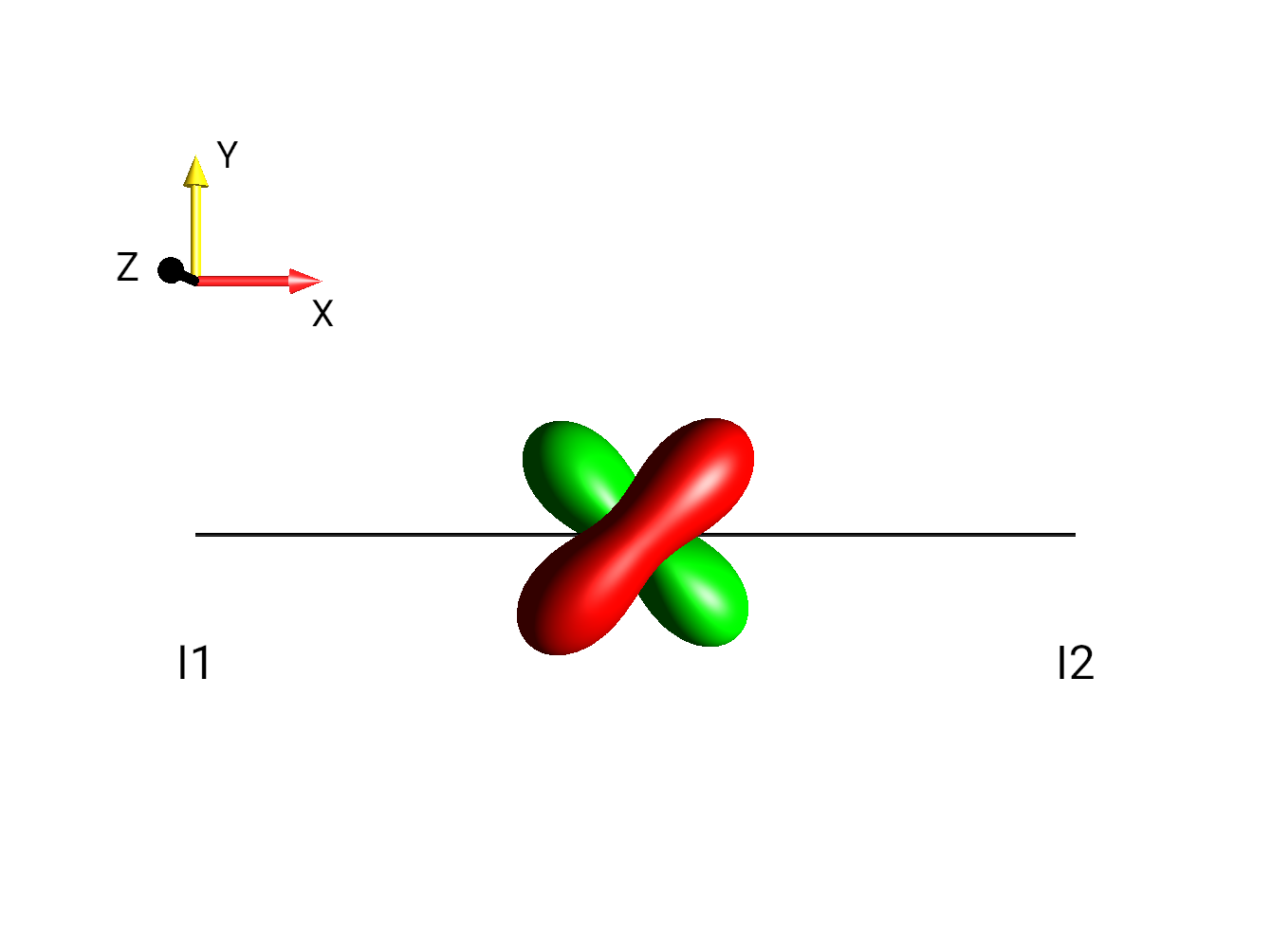
Fig. 271 |
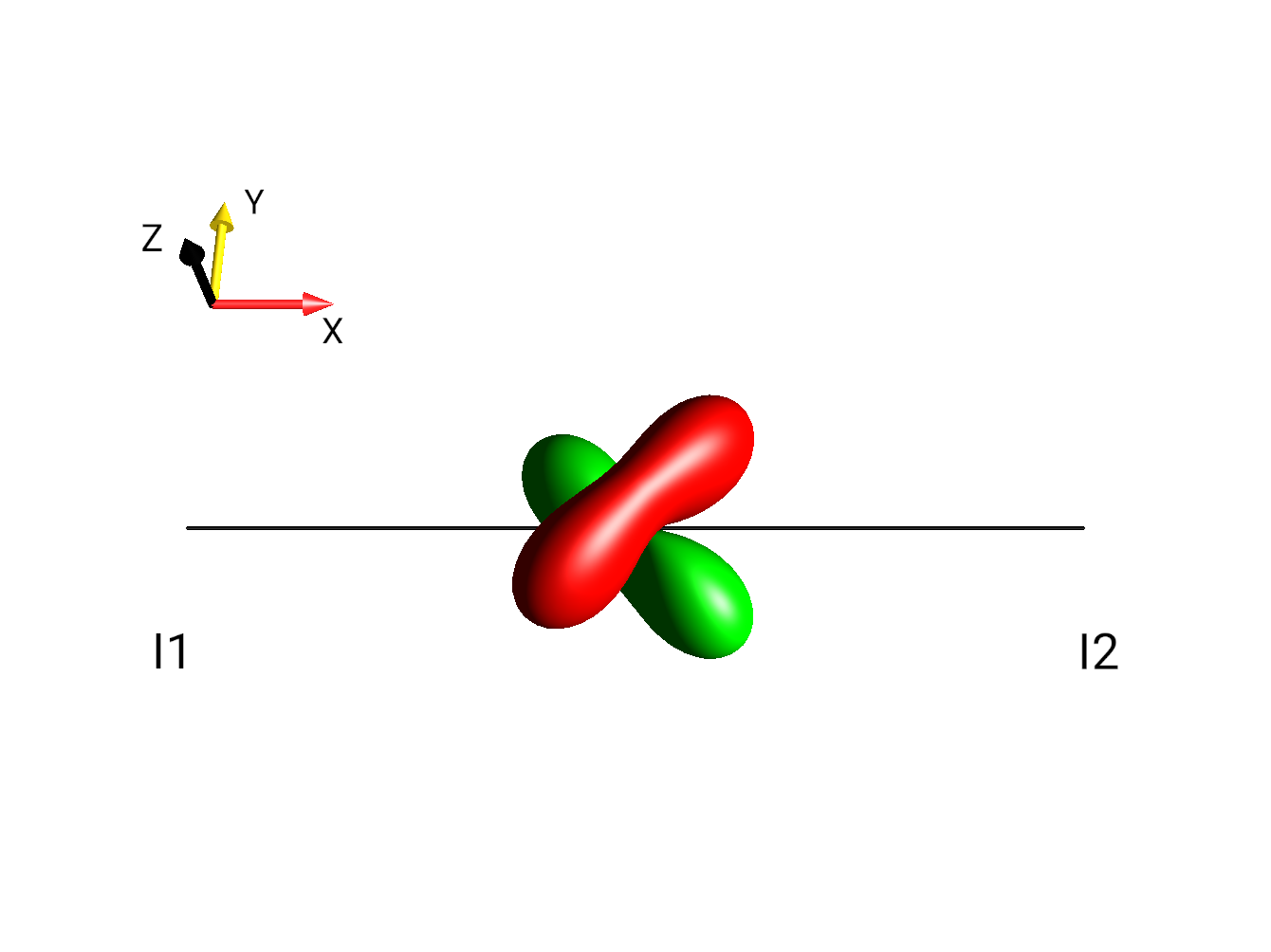
Fig. 272 |
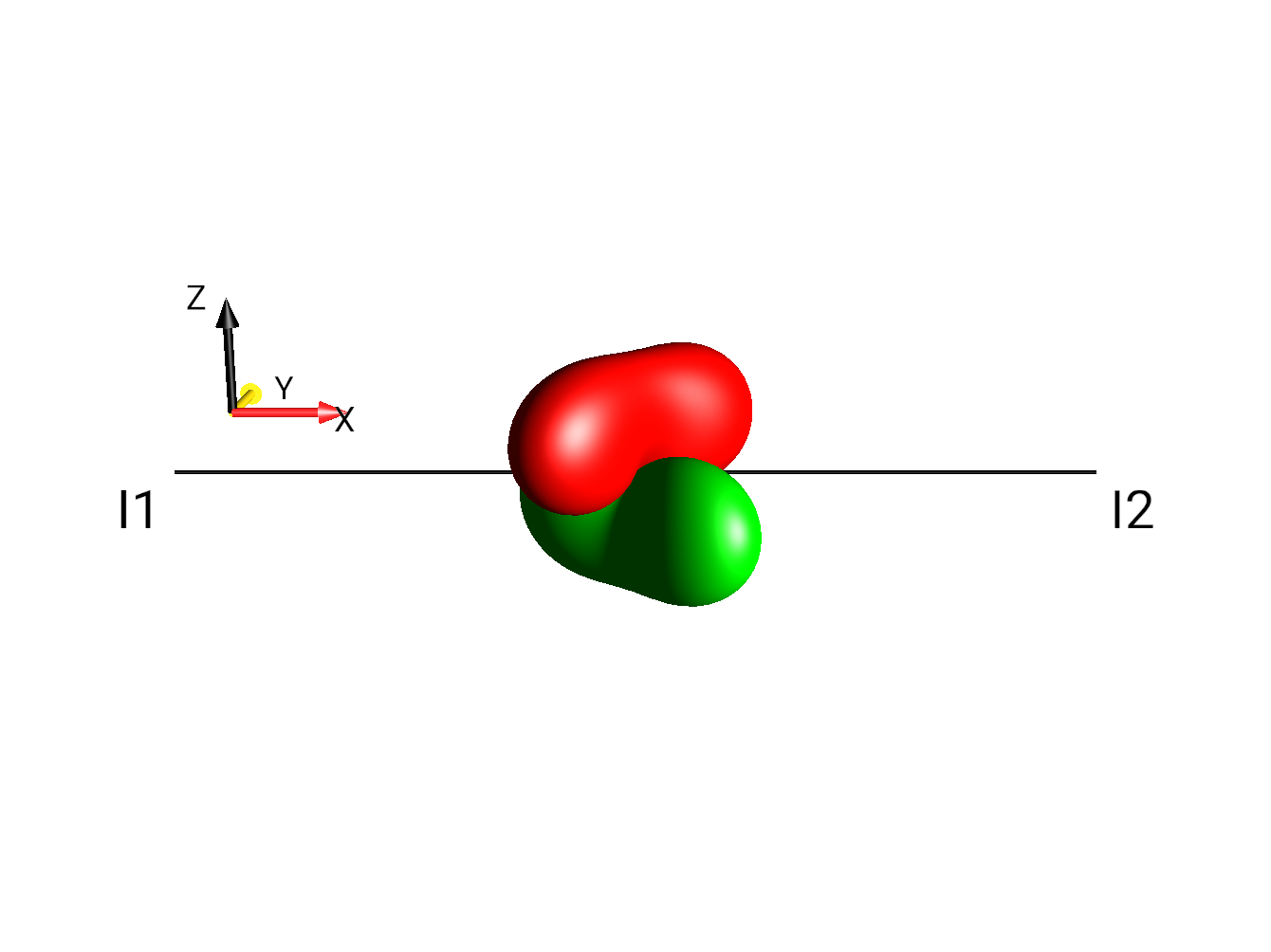
Fig. 273 |
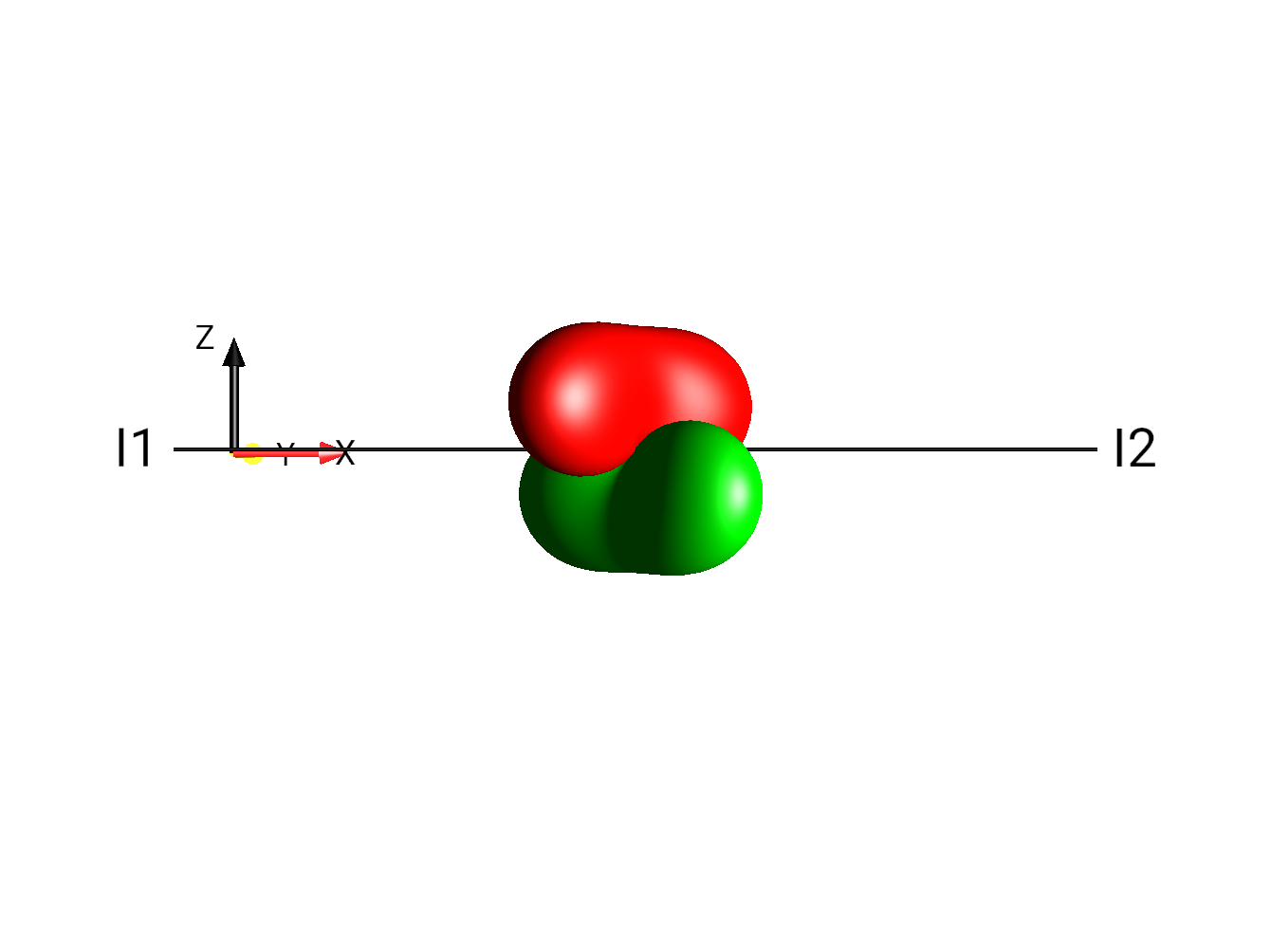
Fig. 274 |
If no world letter is given the previously-set world is used (or the
preset default C if the directive sets the view explicitly).
View Shift (p, q, r)
The view shift letter selects how the camera is positioned relative to the spin system. Each shift has a different base distance and offset:
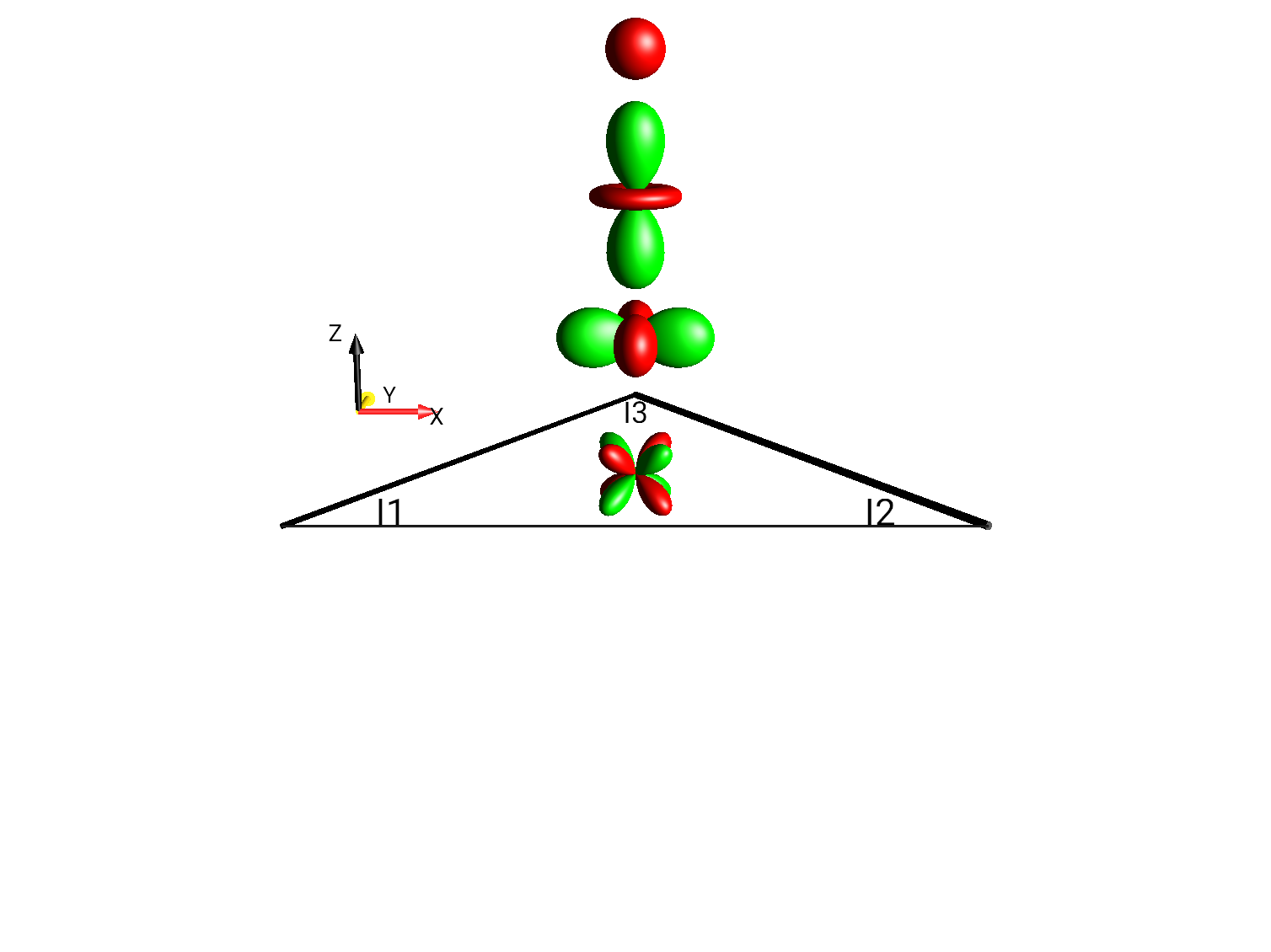
Fig. 275 |
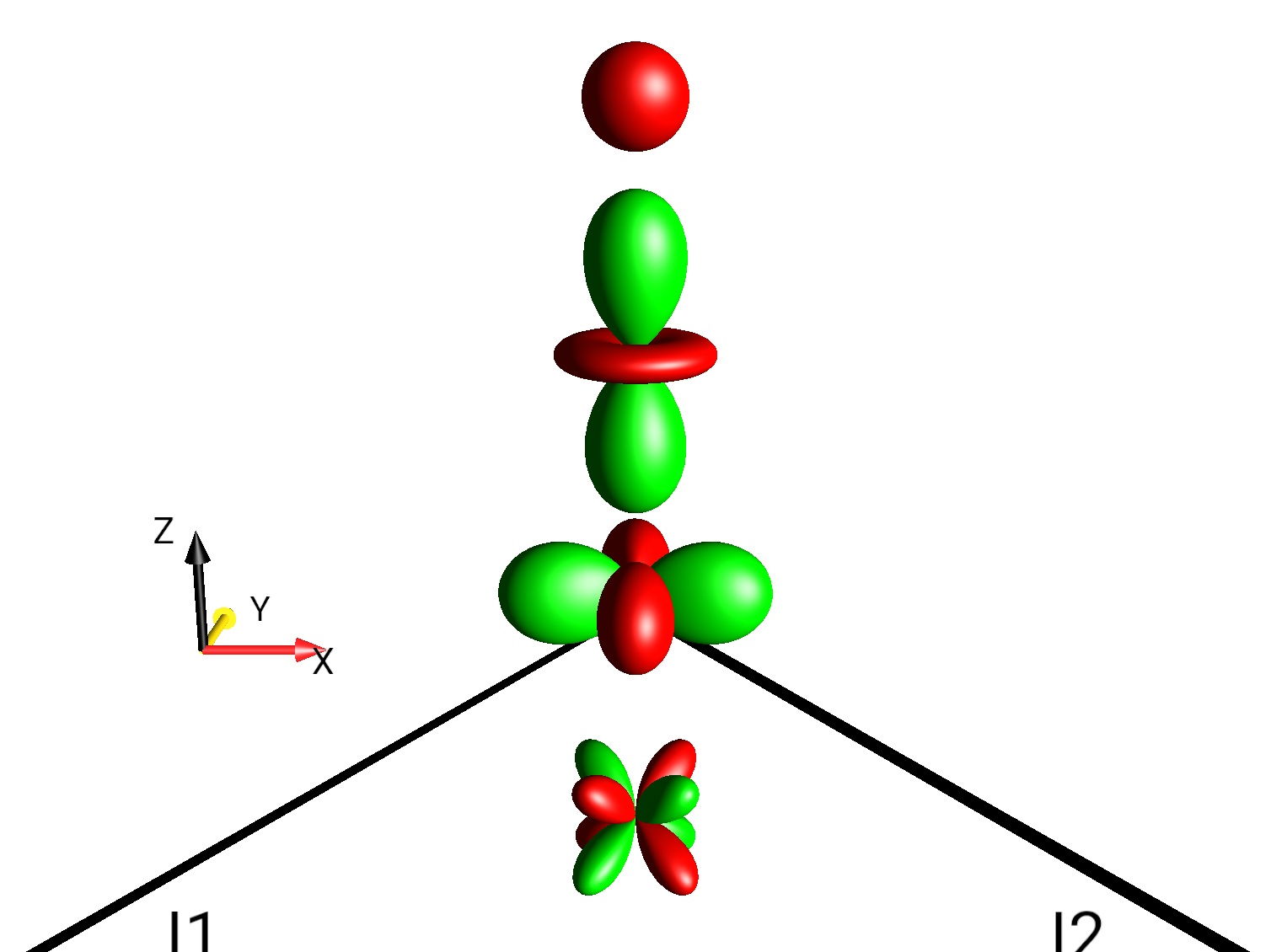
Fig. 276 |
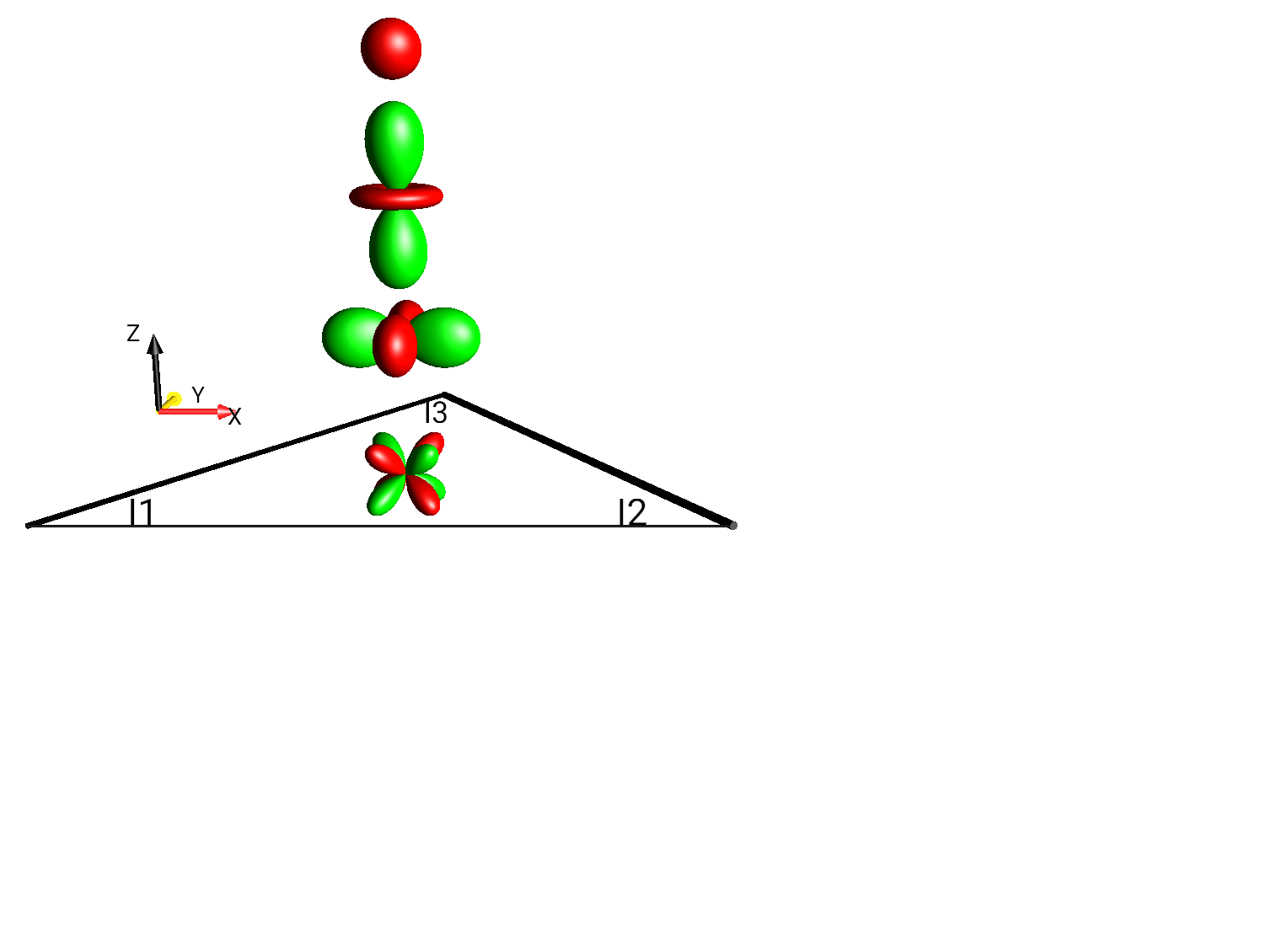
Fig. 277 |
Zoom Scale (percentages)
The optional integer after p/q/r is a zoom percentage.
Higher numbers zoom in (closer camera). Below, the same operator
under increasing zoom:
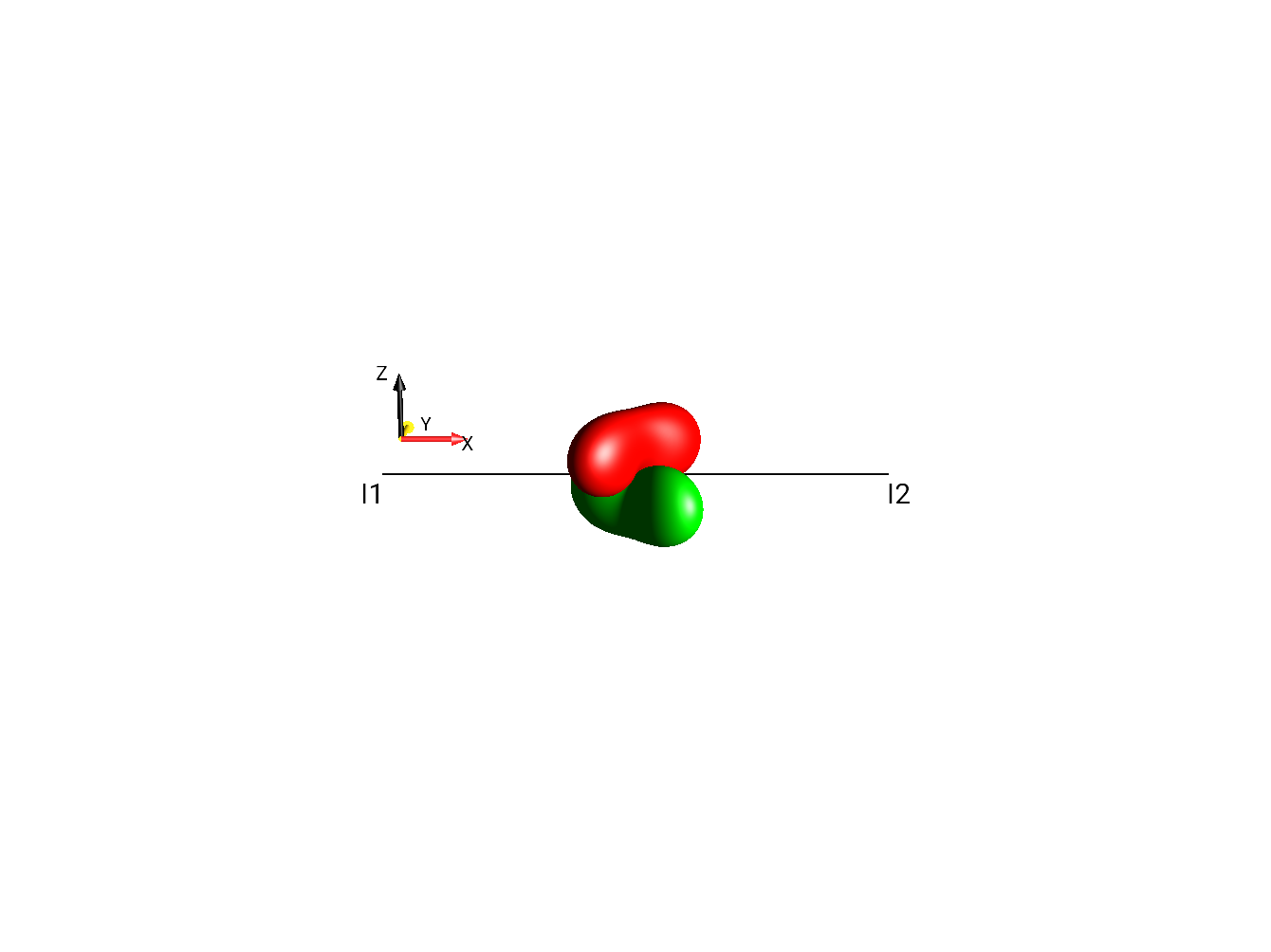
Fig. 278 |
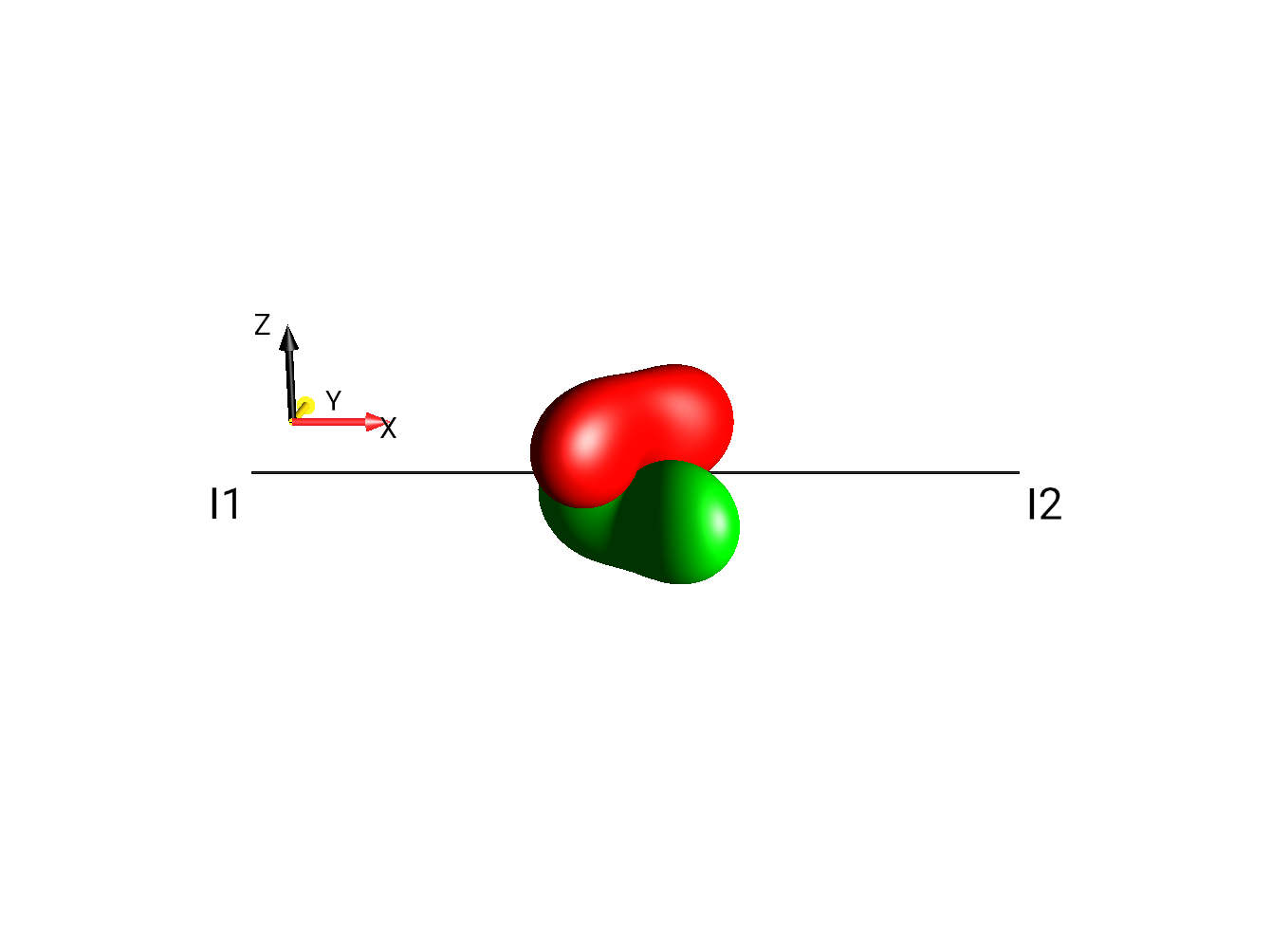
Fig. 279 |
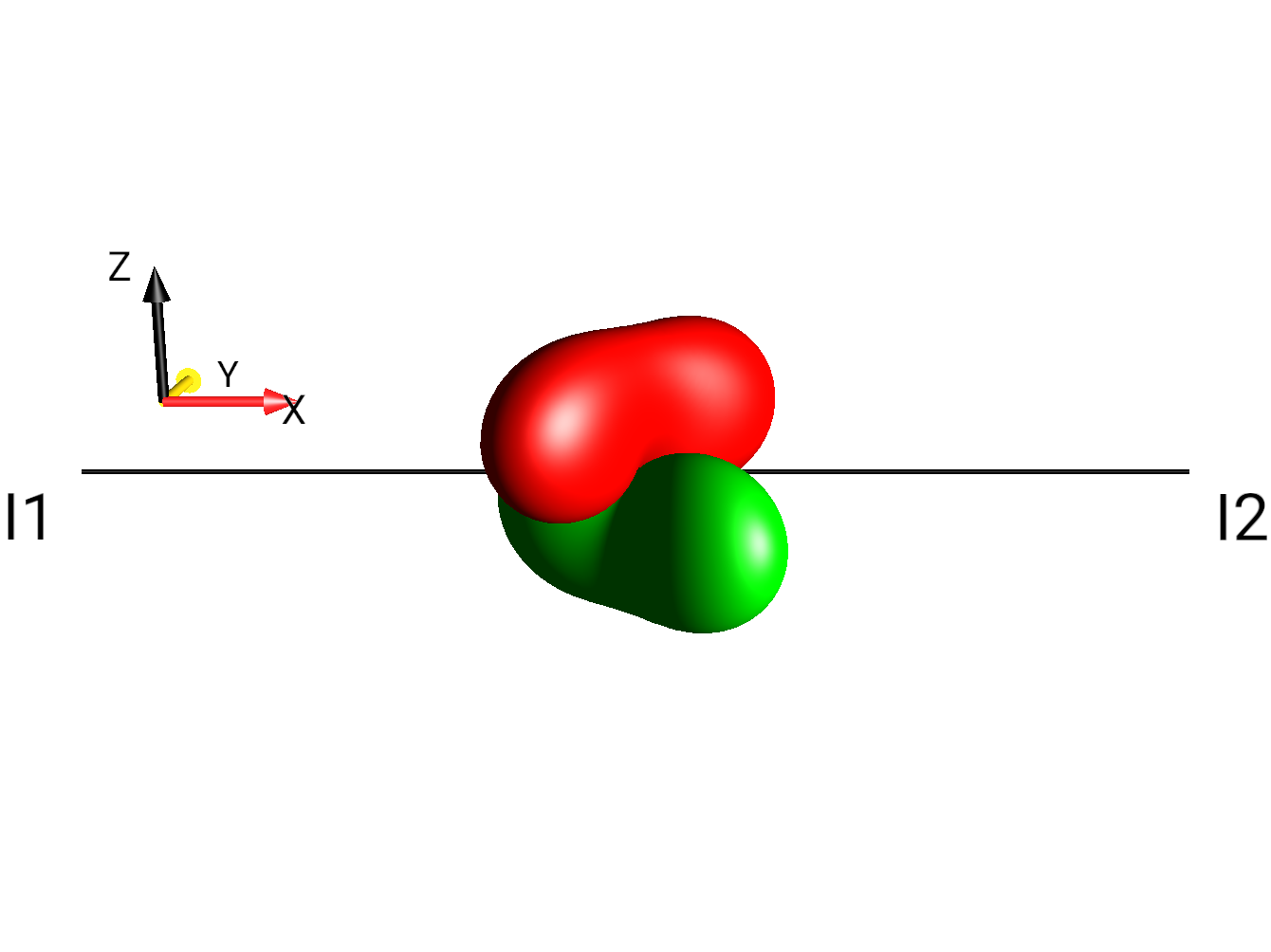
Fig. 280 |
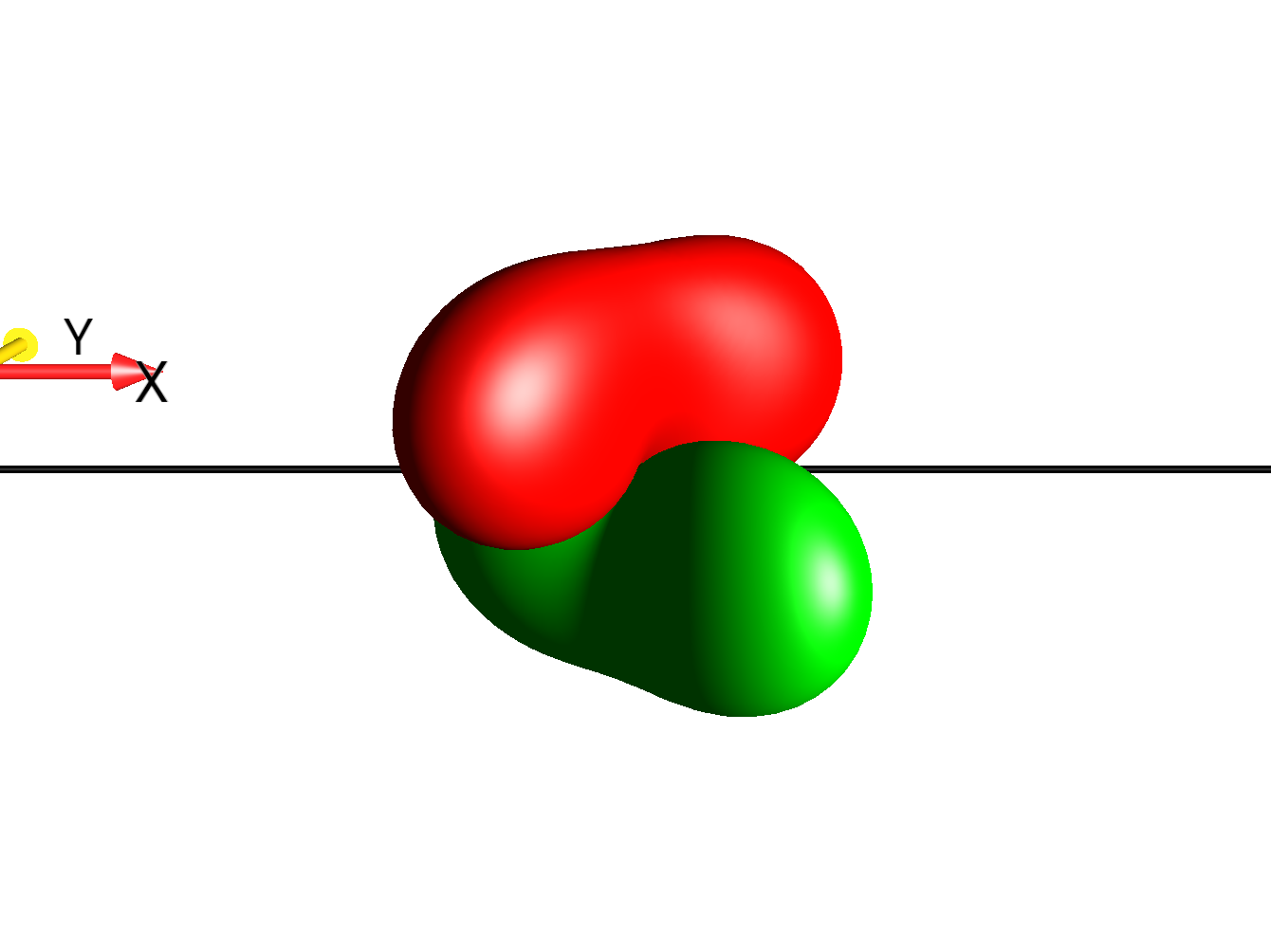
Fig. 281 |
If only the world letter is given (e.g. :view: C) the
drops extension uses a built-in default view tuned for the
:nspin: of the directive. These defaults are reasonable for
4:3 images; for wide-aspect images use an explicit pNNN,
qNNN, or rNNN value.
Visual Reference: :aspect: and :width:
:width: is the rendered width of the image (a CSS percentage of
the page width or an absolute pixel count). :aspect: is the
width-to-height ratio expressed as a percentage (so :aspect: 200%
means width = 2× height). Without :aspect: the default is 4:3
(133%).
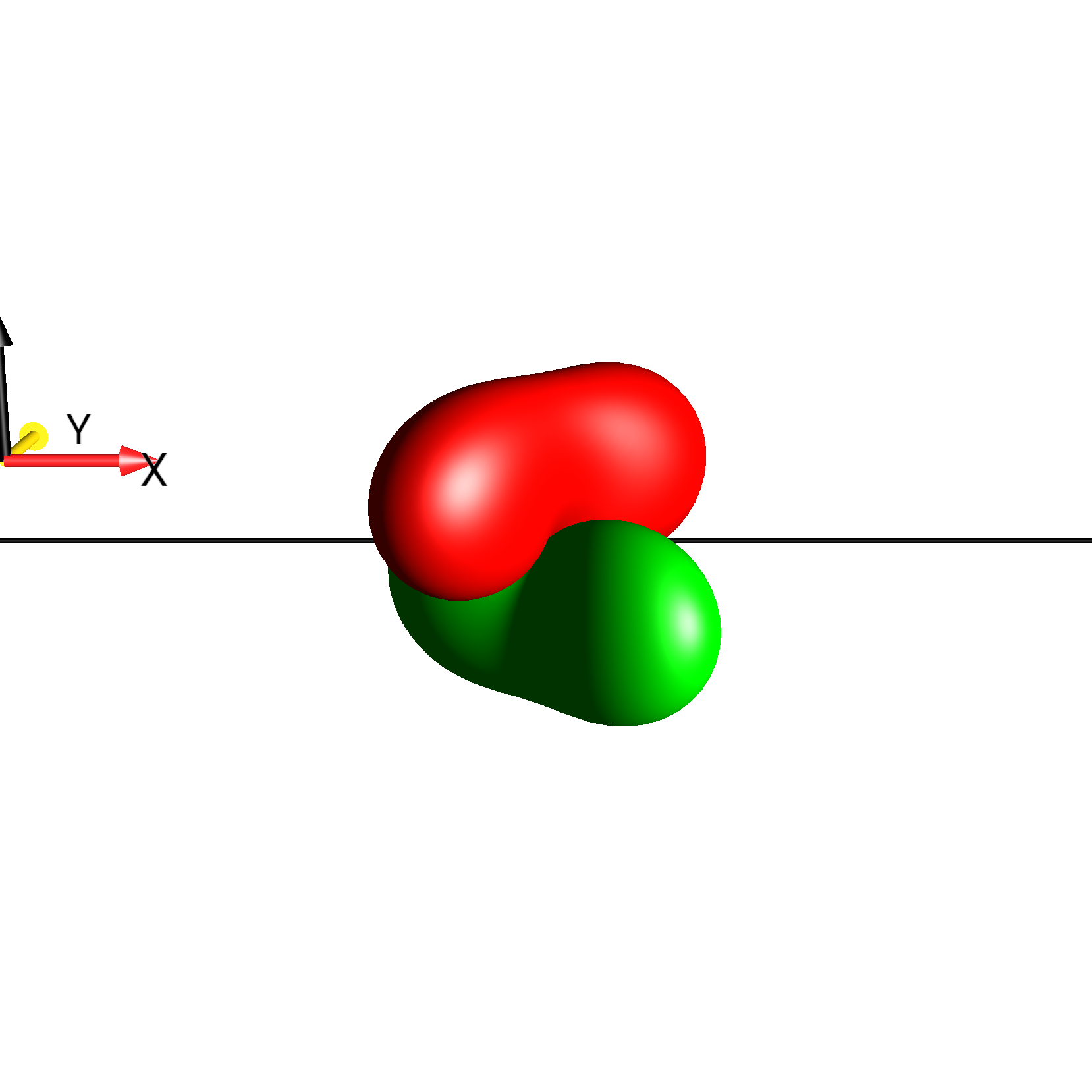
Fig. 282 |
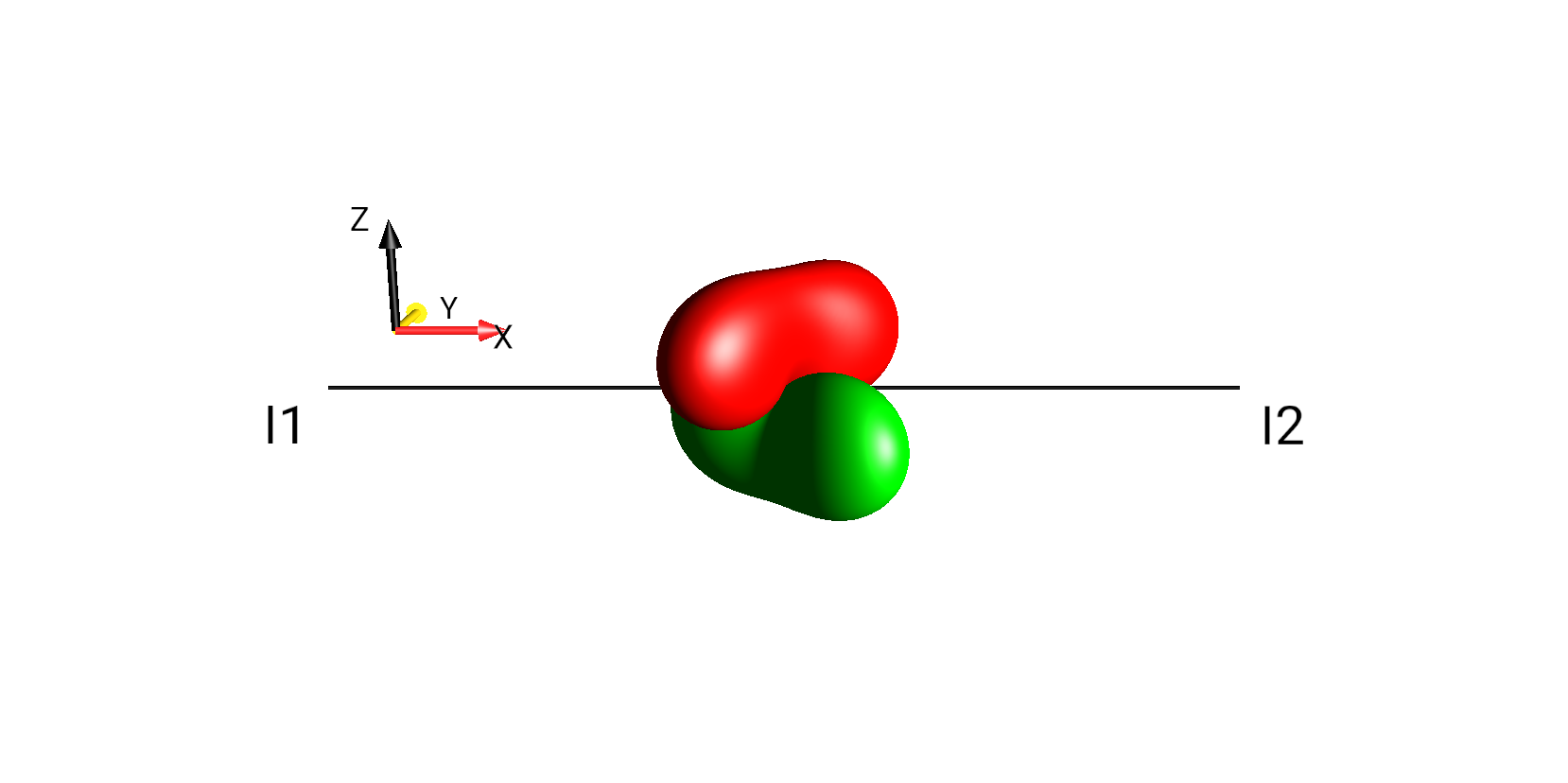
Fig. 283 |
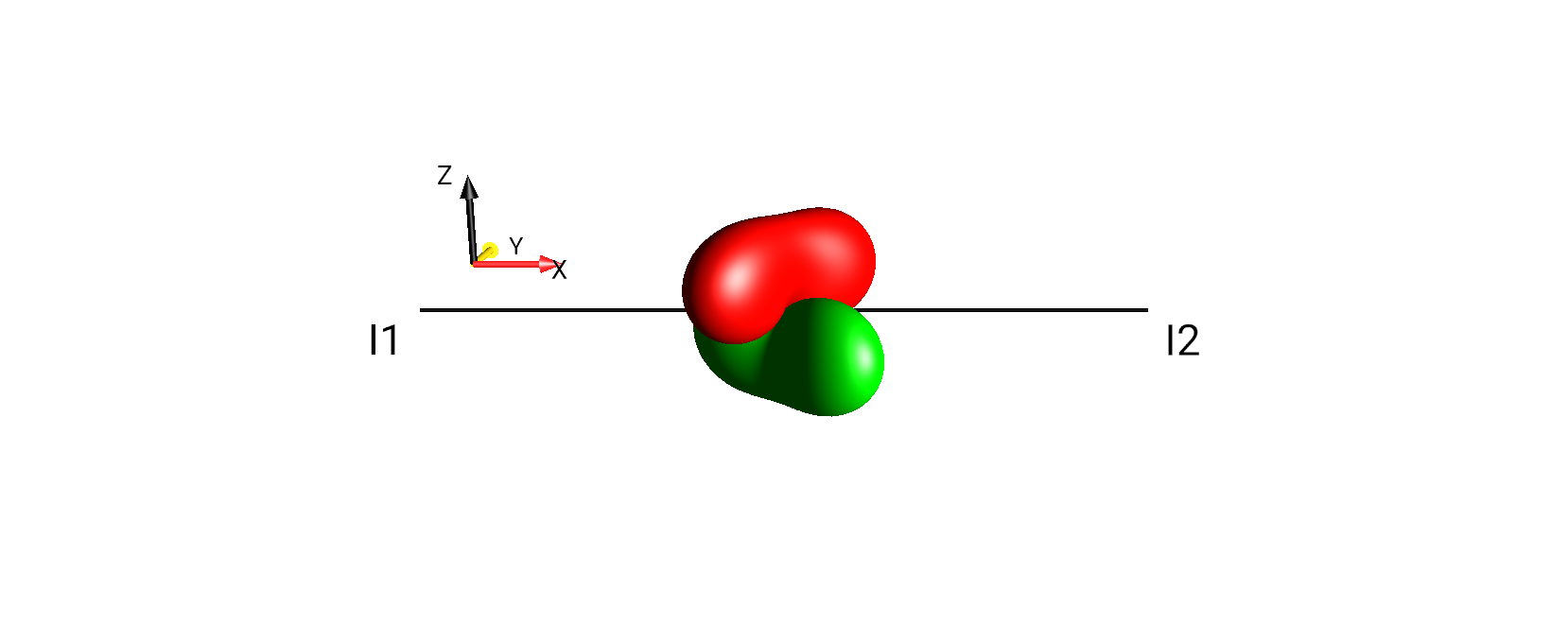
Fig. 284 |
For wide aspects (>150%) you generally want a tighter zoom (e.g.
Cp200 or Cp250) so the drops fill the frame.
Visual Reference: :nspin:
:nspin: selects the spin layout in which the operator is
rendered. Without it, the directive auto-detects the layout from the
spin labels in the operator (I1 → 1-spin, I1...I2 → 2-spin,
I1...I2...I3 → 3-spin).
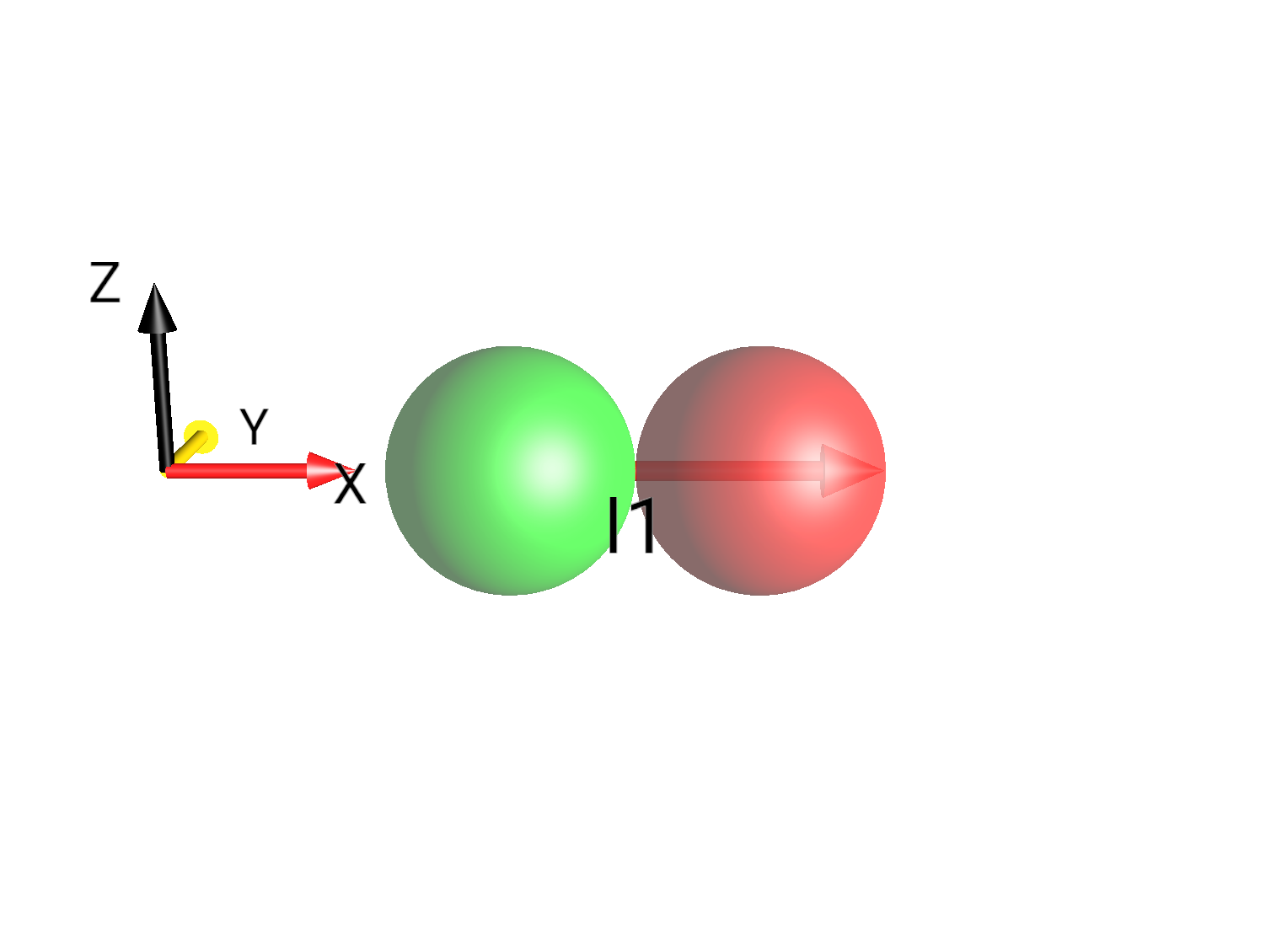
Fig. 285 |
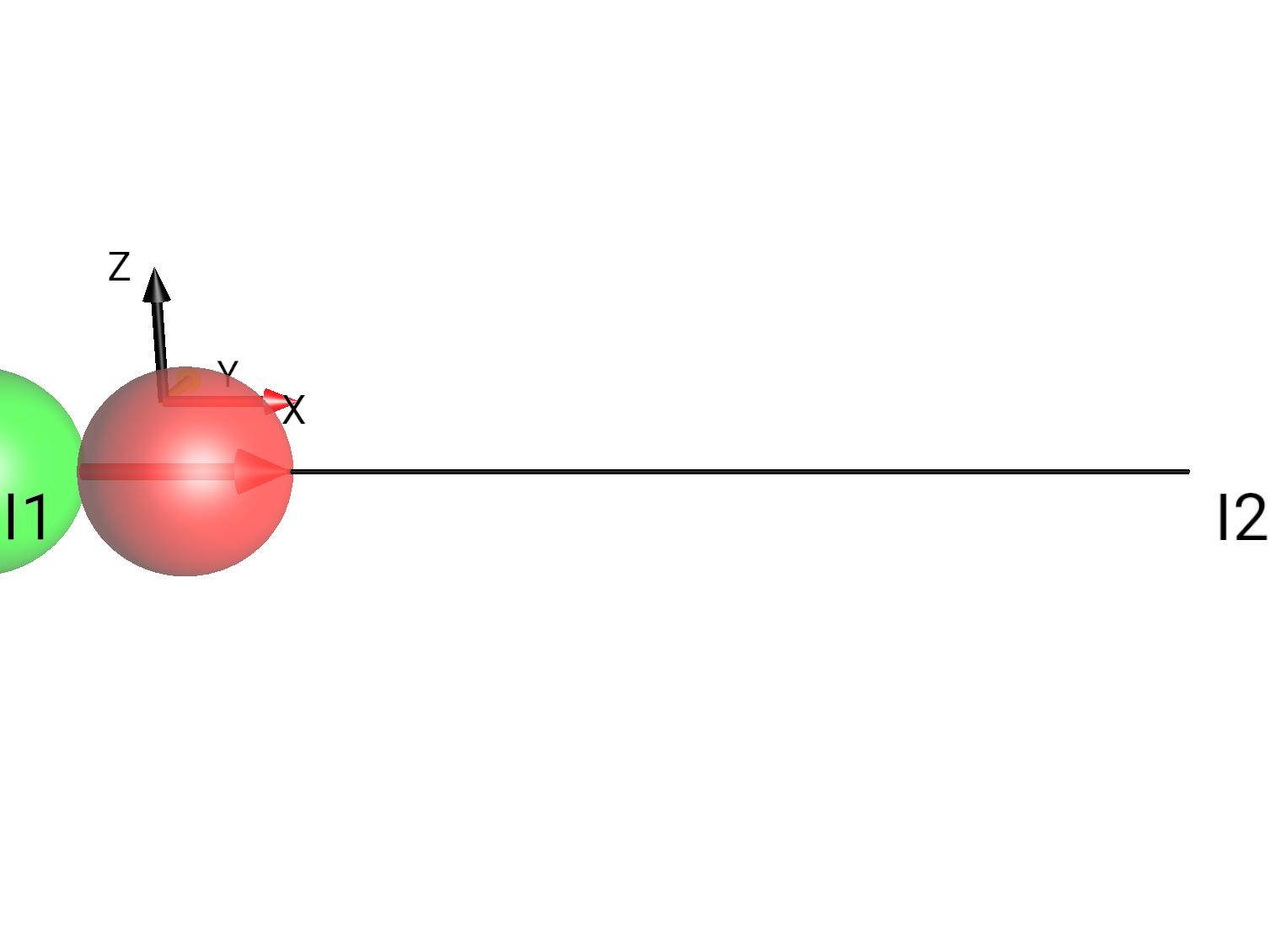
Fig. 286 |
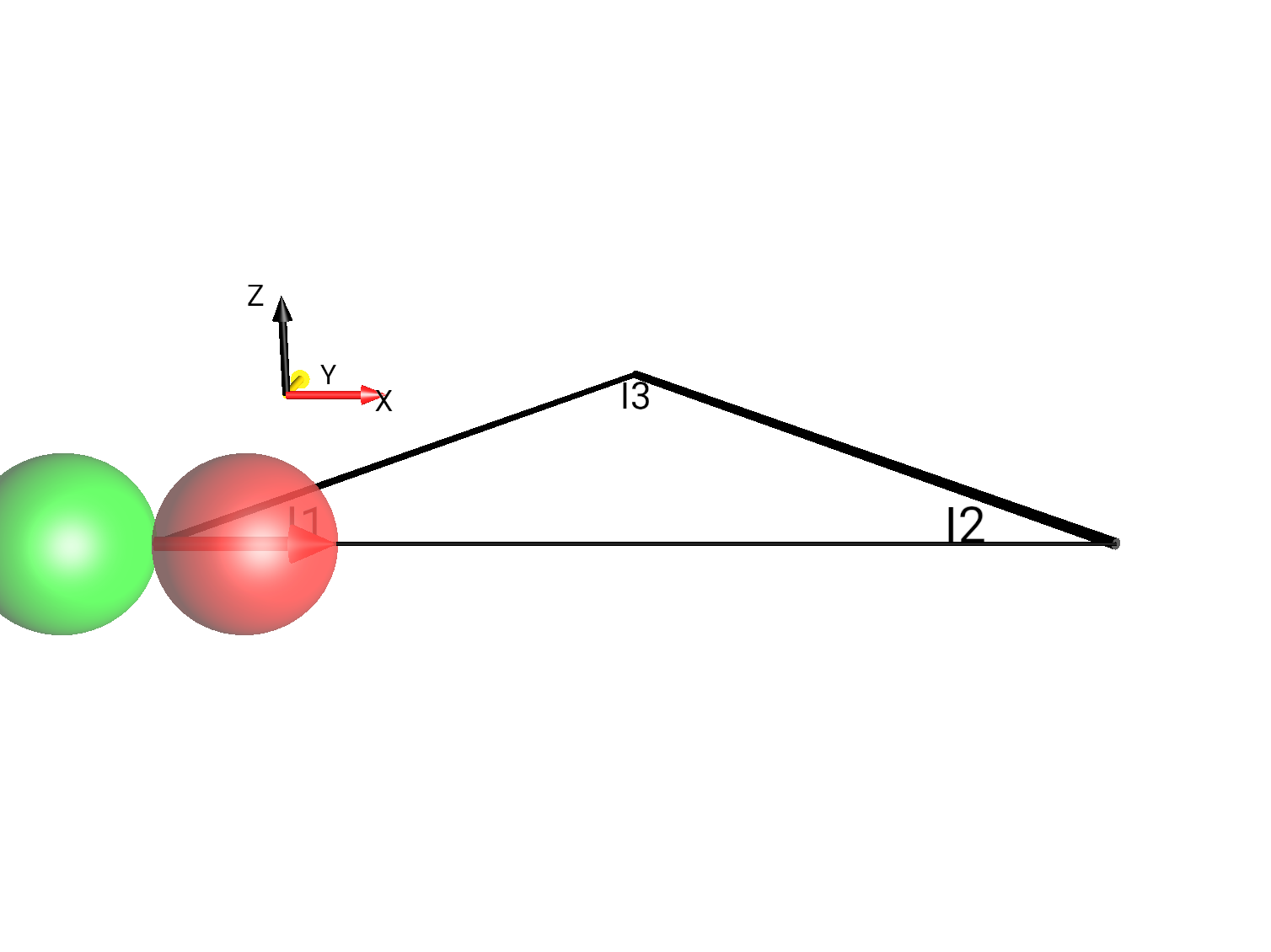
Fig. 287 |
Optional spin-system parameters can be appended after a ;. For
example :nspin: 2; v1=1; v2=2; J12=2.2 sets the offsets and the
J-coupling. Homonuclear=1 makes all spins share one channel.
Visual Reference: :prefs:
:prefs: sets one or more preference values before the simulation
runs. Multiple settings are separated by ;. Common knobs:
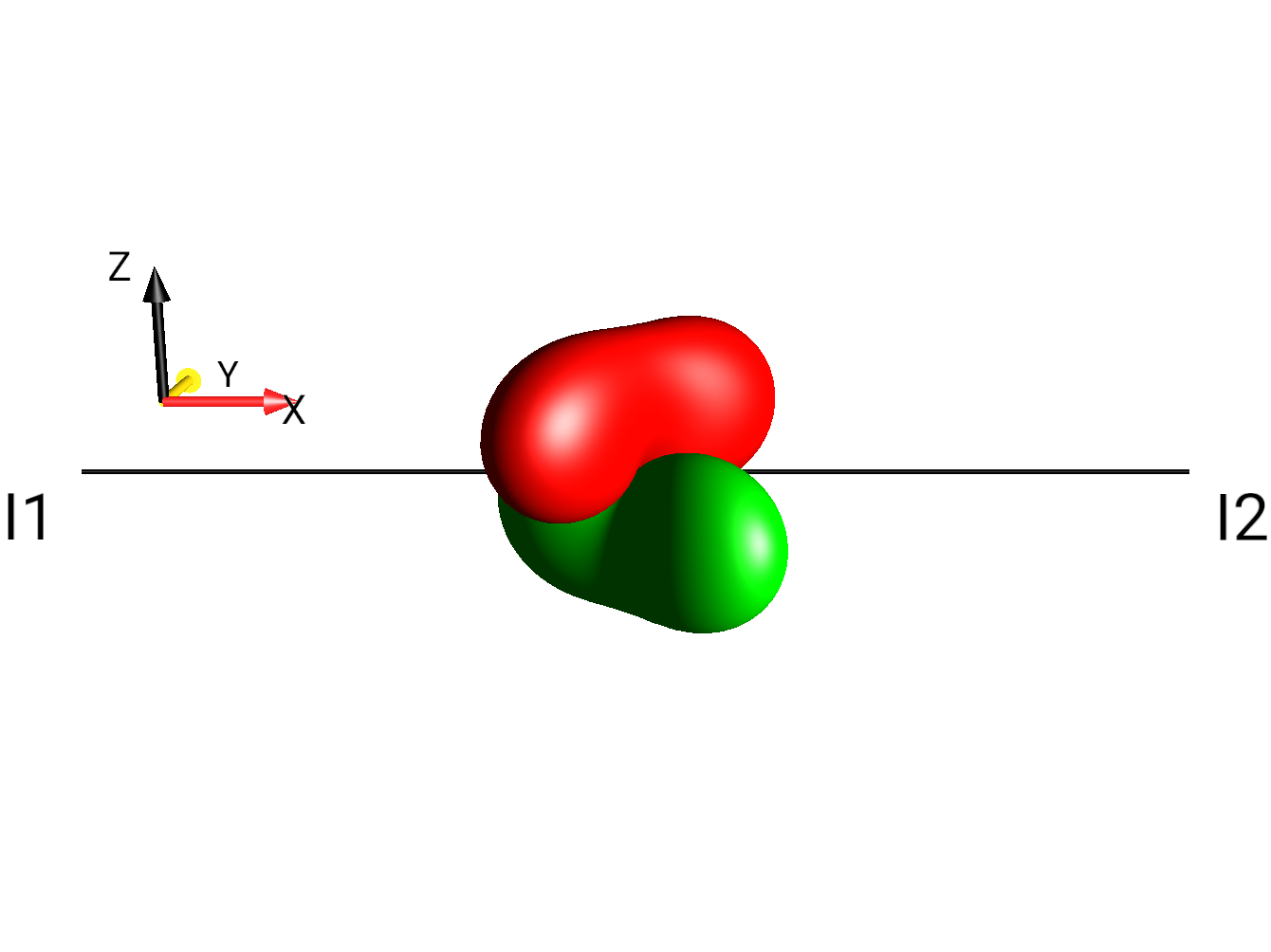
Fig. 288 Axes + droplet labels¶ |
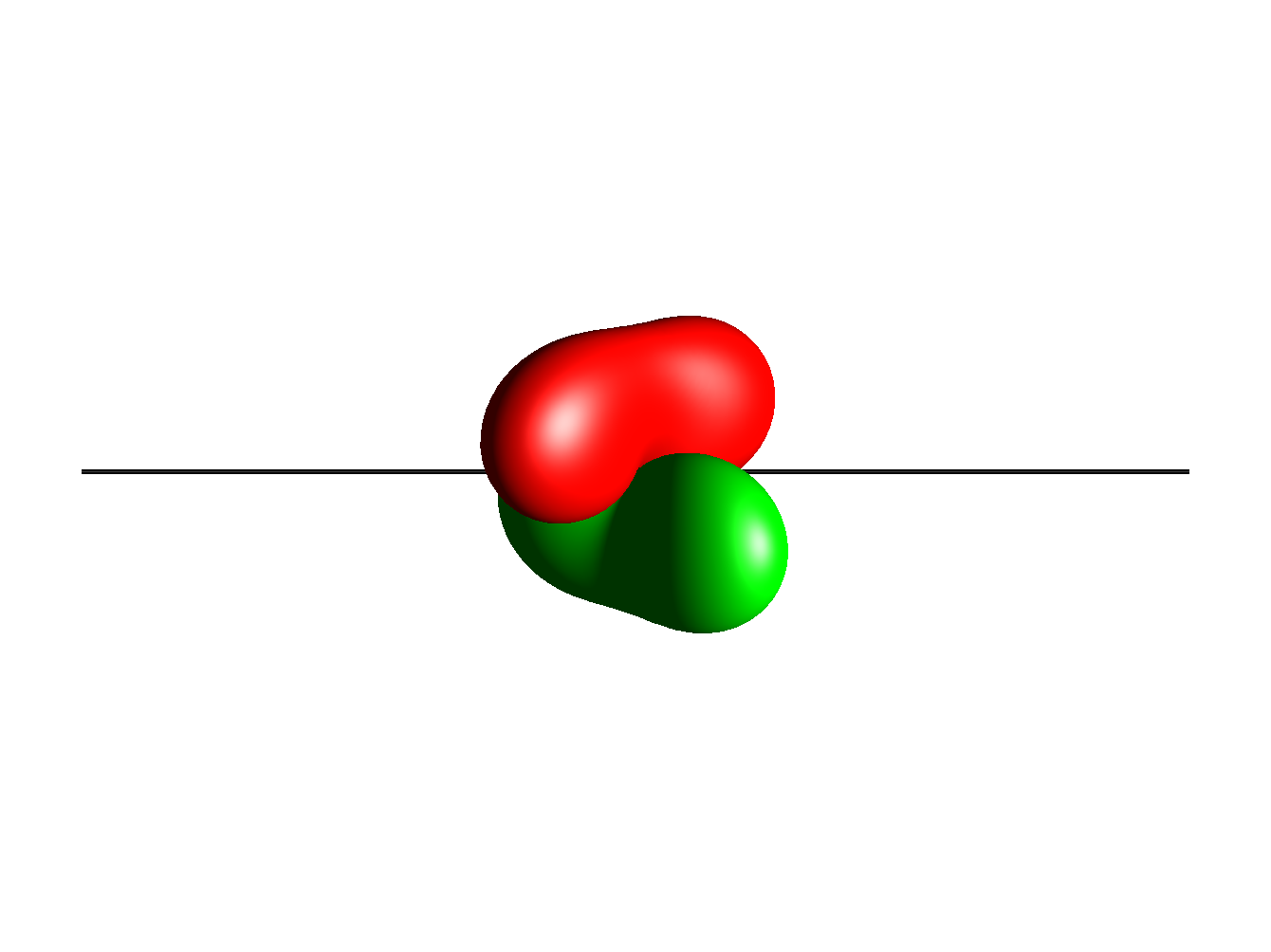
Fig. 289 No axes, no labels¶ |
Other useful prefs include Current Layout (1``=1-spin,
``2``=2-spin, ``3``=3-spin chain, ``4``=3-spin triangle),
``Current Separation, Magnetization Vectors,
Magnetization Droplets, and Foreground.
Visual Reference: :window:
:window: opens a SpinDrops window inside the rendered image.
Multiple windows can be opened by separating names with ;.
Available windows include:
SequenceEditTable— pulse sequence editorSysParamWindow— system parameters / ensemble editorOperatorEditWindow— initial state editorList Basis Elems— basis element listDensity Op.— density operator inspectorOperator Inspector— generic operator inspectorPreferences— preferences windowOptimWindow— pulse optimization windowSequenceExplWindow— sequence-element explainerPulseExplWindow— pulse explainerElem. Propagator— elementary propagator inspectorEditProdOpWindow— product operator editor
Combining :sequence: with :window: runs the simulation in
the full MainFrame view (rather than the bare SingleFrame
operator-only view).
Visual Reference: :class:
:class: adds CSS classes to the rendered <figure>. The
extension recognises border (adds a thin border) and
no-cap-num (suppresses the figure number prefix in the
caption).
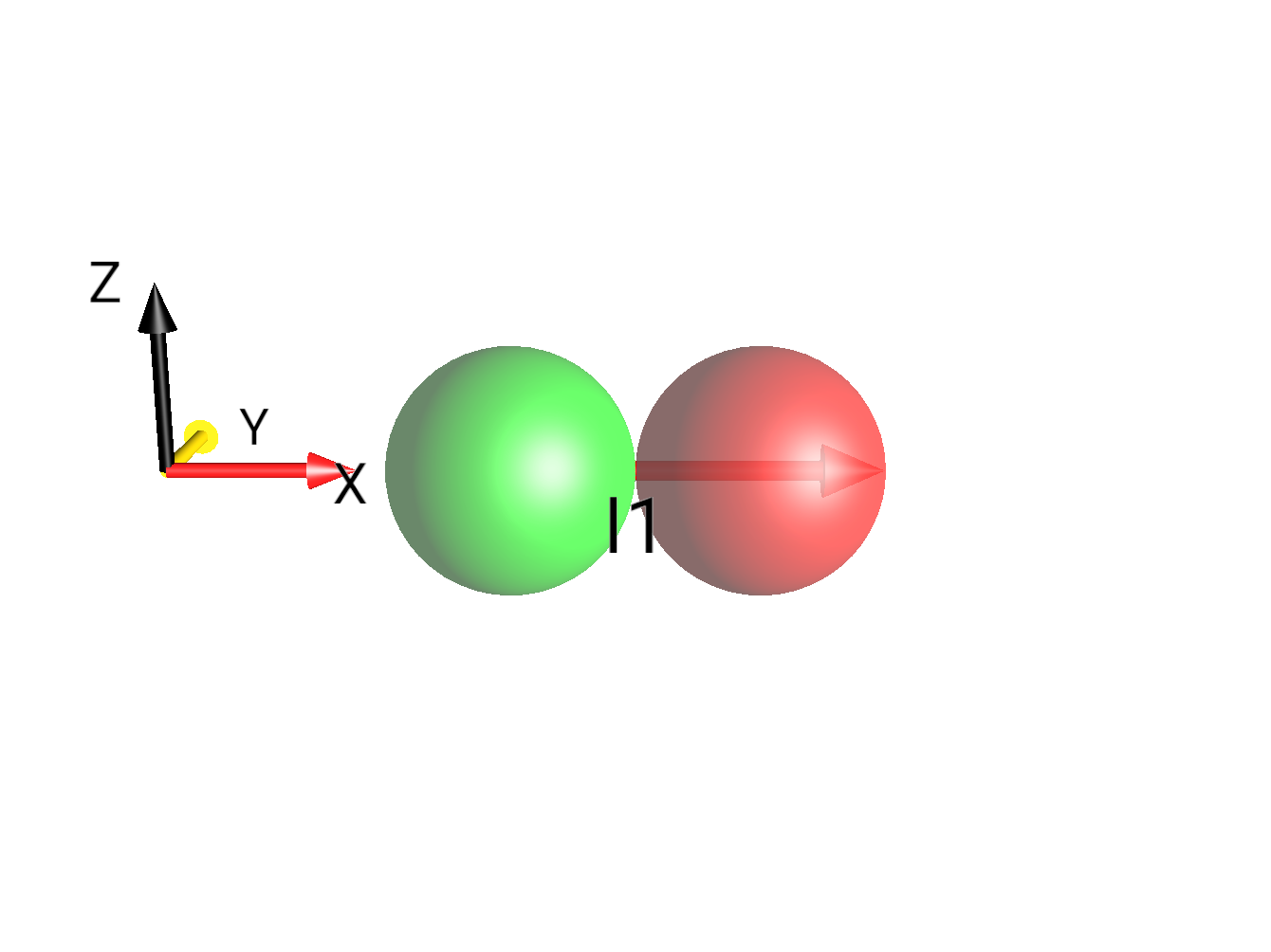
Fig. 290 |
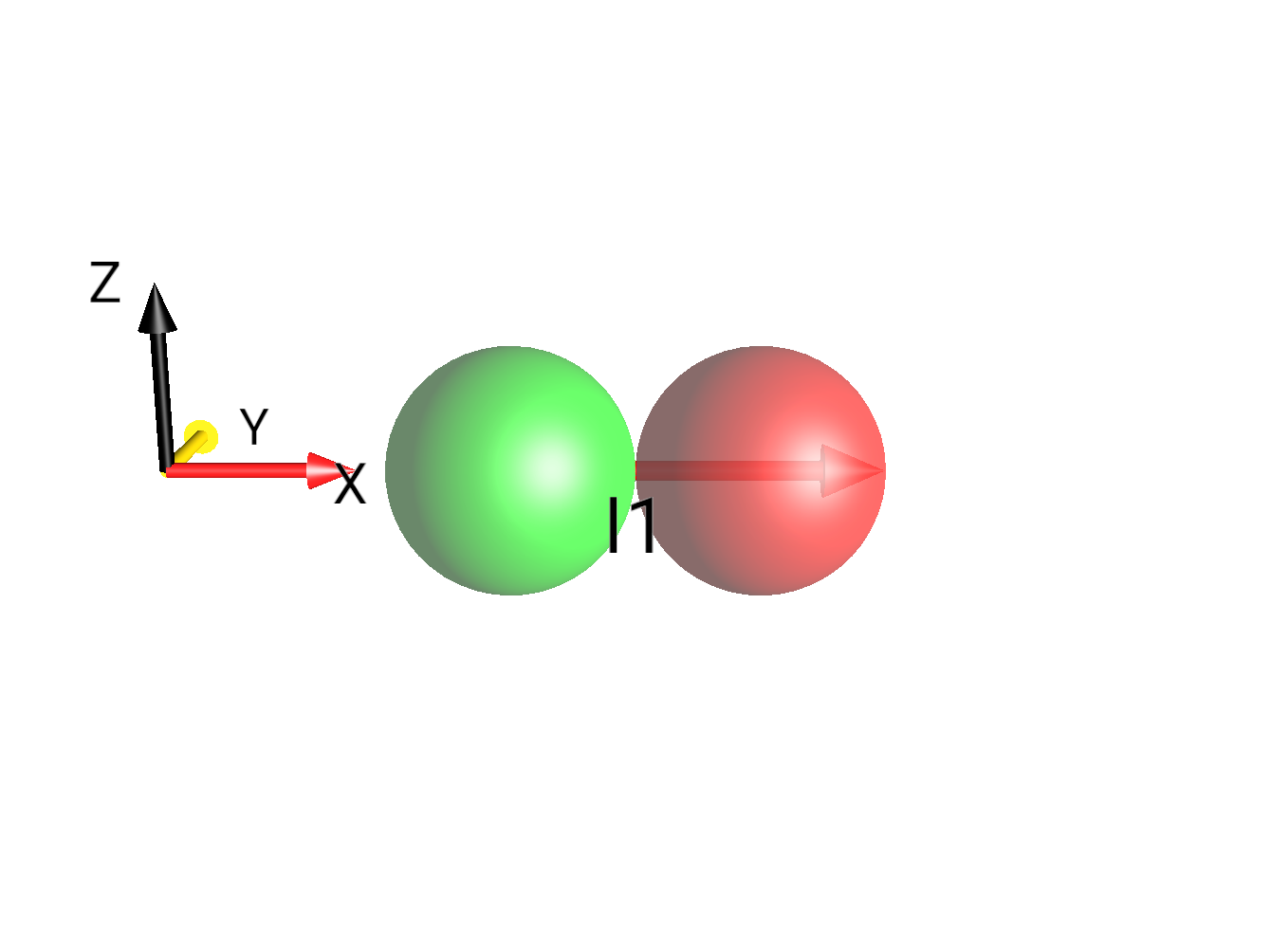
Fig. 291 (no class)¶ |
ReST Text Roles
- :pton:
This text role converts a PTON string into a
mathelement with the PTON replaced by the standard operator notation rendered in LaTeX. For example::pton:`I1x`produces \(I_{1x}\)
- :drop:
This directive can be used to create an inline DROPS image from a PTON string using SpinDrops. The text in the string can optionally contain a number of flags to control the image produced.
If the :drop: occurs inline in text, a simple
imagewill be created, whereas if the :drop: is in a table or at the top level of the document, afigurewith the corresponding PTON set as the figure’s caption will be produced.The role
:drop:`I1x`produces an inline image: .
.Some flags are available to modify the DROPS image:
.schemeselects the preferenceschemein SpinDrops, from the loaded settings, the scheme name must be followed by a whitespace character. The default schemes aredoc1,doc2,doc3, anddoc3c: these are mostly base viewports for viewing different sized spin systems. This is the same setting as the drops directive’s:pdir:option.|adds the css classborderto the figure:drop:`|I1p`->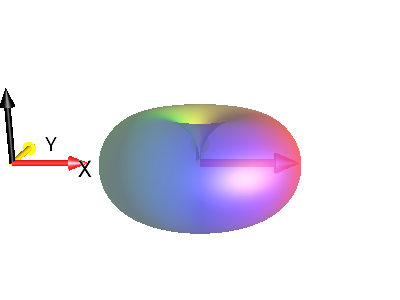
^A^B^C^Dchanges the viewpoint to one of the preset worlds: A, B, C, or D. This is equivalent to the:view:option to the ReST Directive.:drop:`|^AI1p`->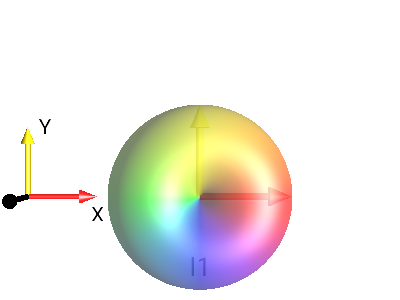
:drop:`|^BI1p`->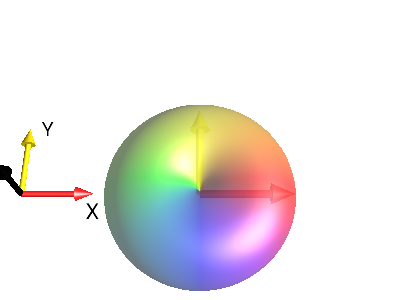
:drop:`|^CI1p`->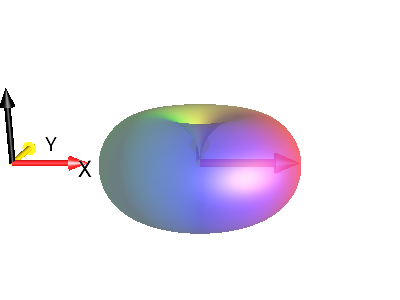
:drop:`|^DI1p`->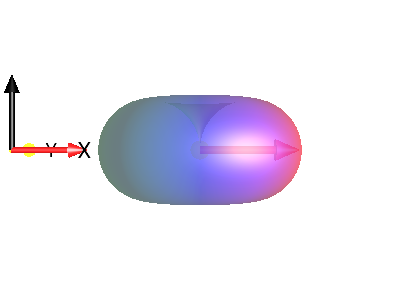
It can be followed by an optional
p,q, orrview scaler flag which is then followed by a percent-based integer scale:Different values of N in
pN
:drop:`|^B I1p`
:drop:`|^Bp50 I1p`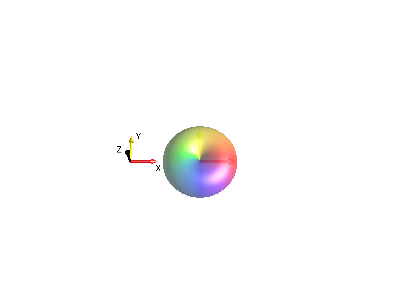
:drop:`|^Bp100 I1p`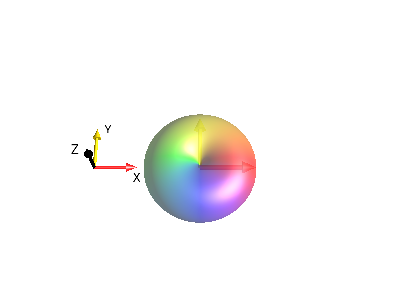
:drop:`|^Bp150 I1p`Different values of
p,q, orr
:drop:`|^B I1p`
:drop:`|^Bp50 I1p`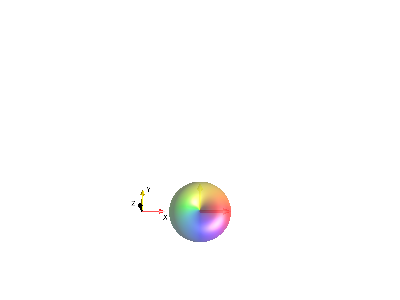
:drop:`|^Bq50 I1p`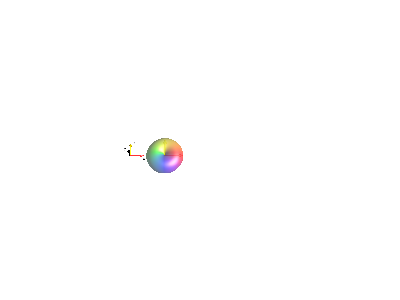
:drop:`|^Br50 I1p`{enables Separation Based on Coherence Order p in the display.:drop:`|^C{I1p`->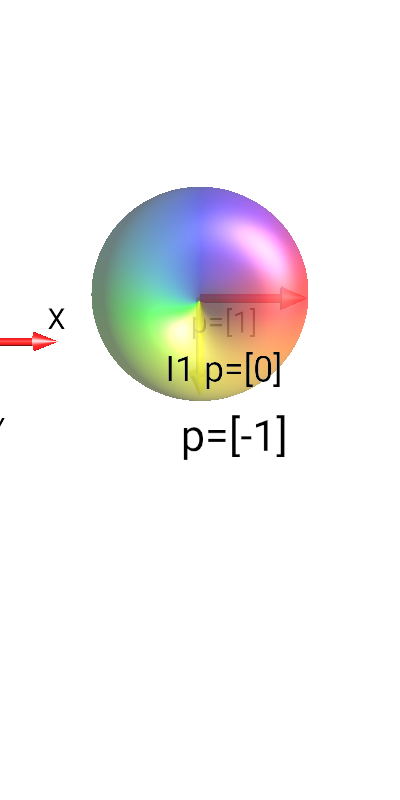
/nchanges the image width to (100/n)% of the page, n must be followed by a space or non-digit character. For example,/3 I1xcreates an image that is 1/3 of the page width. The default image width is 200 px.:drop:`|/4I1p`->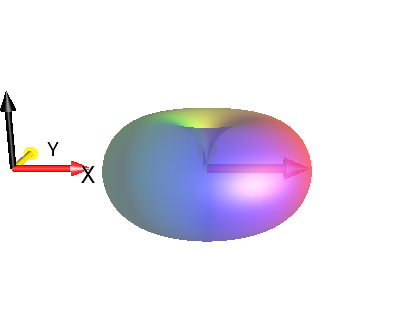
:drop:`|/6I1p`->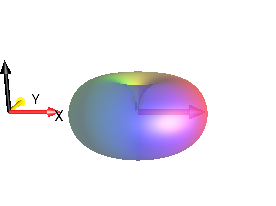
#ncauses the PTON to be rendered in the context of an n-spin system. The value for n must be followed by a non-digit character character. for example:drop:`#2 I1y`or:drop:`#2I1x`If this is unset, the default is to use the maximum spin number of the PTON to decide how big the spin system should be.:drop:`|#2I1p`->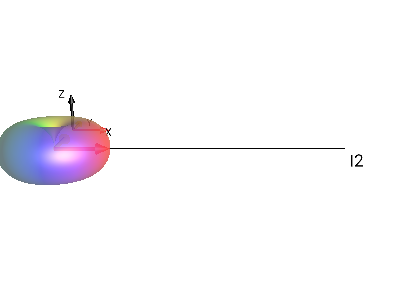
:drop:`|#3I1p`->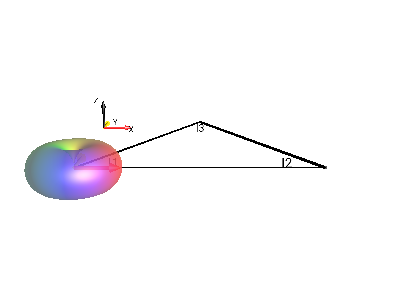
"caption"sets the figure caption to the quoted string. Example:drop:`"neato"I1x`[...]sets a prefs string, as in the :prefs: option.:drop:`|[Show Axes=false]I1p`->